
It's easier than you think. And we need it to upgrade your seats or put them on subscription.
Open AutoCAD and type in _PKSER to see the serial number (the underscore is mandatory). It's as easy as that!
It's easier than you think. And we need it to upgrade your seats or put them on subscription.
Open AutoCAD and type in _PKSER to see the serial number (the underscore is mandatory). It's as easy as that!
Need to 'hide' pipe diameters or lengths for a pre-approval plot? How about hanger lengths?
HydraTools->Modify-AttributesHide Attributes (HAT) can be used to turn off all kinds of things associated with HydraCAD – just look at the option on the dialog box:
After choosing your option, you will be able to select which items to apply the hide to, that way you can have a mix on your drawing
To show them again, just pick Unhide and repeat.
Many of us have trouble getting our AutoCAD/Navis/Revit registered, especially with a network. Now, Autodesk has announced 'New Ways for Customers to Get Licensing Assistance'
Autodesk customers can access licensing assistance in the following ways:
This is a subject that I need to revisit every now and then, and it gives me a headache every time. What happens when you open AutoCAD?
A. CUI files loaded:
1. Enterprise
2. Main
3. Partials to Main
4. Partials to Enterprise
B. acad*.* files loaded:
1. Files listed in acad.rx
2. acad2012.lsp
3. acad.lsp
4. acad2012doc.lsp
5. acaddoc.lsp
6. acad.dvb
C. CUI-associated MNL and LSP files loaded:
1. Enterprise named MNL
2. Enterprise loaded LSP and MNL
3. Main named MNL
4. Main loaded LSP and MNL
5. Partials to Main named MNLs
6. Partials to Main loaded LSPs and MNLs
7. Partials to Enterprise named MNLs
8. Partials to Enterprise loaded LSPs and MNLs
D. Startup suite files loaded
E. Startup routines run:
1. AcadStartup() called (AutoCAD startup)
2. AcadDocument_Activate() called (Drawing startup)
3. (S::STARTUP) called
Yeah, it's a lot. We do not use all of these, but occasionally I need to dig through this list because a customer has an unusual third-party application that is causing conflicts.
The above list is from cadnauseum. That blog post has extensive documentation to further explain the load sequence. If you need a snooze, dig in!
From a customer: On occasion I use the program at my home computer (this has helped in doing the tutorials). Most of the time I need to use only my Autocad 2012 without HydraCAD, but the system looks for the lock. Is there a solution to this?
The way to do this is to create separate profiles for HydraCAD and AutoCAD. The V51 shortcut already points to our profile, so all you need to do is create an AutoCAD profile.
4. Pick Export. Choose a folder location for the profile name. I previously created a \Profiles folder for this purpose. Give the profile the name of 'Default AutoCAD' and pick Save
5. Locate the original AutoCAD shortcut on your desktop (not the HydraCAD one) and right-click on it. Pick Properties and pick the Shortcut tab. Locate the Target item on that page
6. Add the syntax -p C:\Profiles\Default AutoCAD to the end of the Target string, adding a space first. This assumes that C:\Profiles is the location chosen for the profile. Your AutoCAD profile is now saved and the shortcut created for that
7. Now, you need to reset AutoCAD to look at HydraCAD one last time. Pick the Windows Start button, pick Programs/All Programs, pick Hydratec Version 50 software, then pick Configure AutoCAd for HydraCAD V50/V51 and run through that short install/configuration
You now can run both AutoCAD in its original state and HydraCAD in its preferred state. These steps should be able to performed to run HydraCAD side-by-side with any 3rd party product or flavor of AutoCAD. Just configure OPTIONS for the product you want and Export it and follw the steps above.
I found this while googling for a solution to a customer problem – whenever he selected an object, all objects touching that object were also selected. I did not know AutoCAD had such an option, but they call is 'fast selection'. Click here for most of what you see below Ways to use AutoCAD Object Selection and also check these out: Selection Options in AutoCAD 2012, Object Selection in AutoCAD and Use all of your selection options
Listed, they are:
You can pick single object when AutoCAD ask you to select objects.
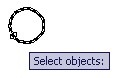
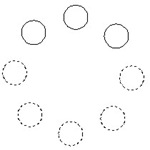
You can define a window selection by clicking at two points. Click first point on the left side, and 2nd point on the right side. This will select all elements inside the window.
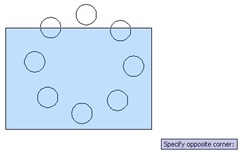 |
This action will select: (dotted circles are the selection) |
 |
If you pick your points right then left, then it will be cross window selection (will be explained next). This two are the default window selection.
If you want to activate window selection, type W then [enter]. Type it when AutoCAD ask you: select objects…
Even you pick points from right then left, it will be window selection.
Basically if your window selection defined from right to left, then it will be cross window selection. It will select all elements inside and touching the window.
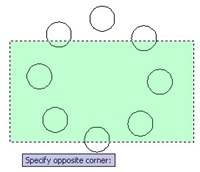 |
This action will select: | 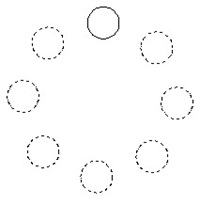 |
You can override to activate cross window selection by typing C then [enter].
You can select drawing elements by defining ‘a fence’ that touched objects you wanted. Just type F then [enter] to activate it. After you finish defining your fence, press [enter] to select.
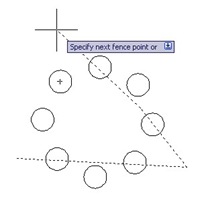 |
This action will select: | 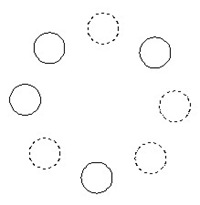 |
This option behave as window selection, but you can define unlimited points for that window. Just type WP then [enter] to activate it. All elements inside the window will be selected.
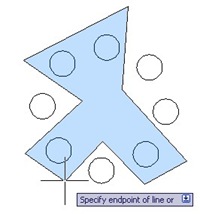 |
This action will select: | 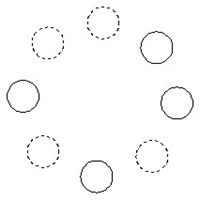 |
Similar to cross window selection. CP
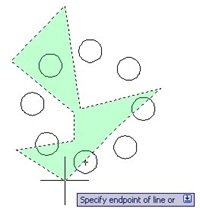 |
This action will select: | 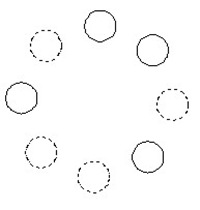 |
When AutoCAD ask you to select object, type ‘FS then [enter]. We use ‘ for transparent use. Pick your object, then all objects touching it will be selected.
Select objects: ‘FS
Use ‘FSMODE to control chain selection.
FSMODE = OFF
Select touching object: 3 object(s) found. 3 found, 7 totalSelect objects:
Exiting Fastsel
FASTSEL is an express tool. So if you don’t have express tools installed, it might not work.
This selection is controlled by FSMODE system variable.
FSMODE = OFF (default), it will select objects touching your picked object only.
FSMODE = ON, it will select objects touching it, and all objects touching them too.
If you have many overlapped drawing elements or close to each other, and you are too lazy to zoom in, you can cycle between them by pressing [shift] + [space]. Hold your [shift] key, and press [space] several times until you found your object. Release your keyboard key, then click your mouse.
Did you ever want to select your previous selection? Easy, just type P then [enter] when AutoCAD ask you to do selection!
What about last object created? Either the last drawn or result from modify operations such as copy. Type L then [enter]!
Sometimes it’s easier to select all elements then remove some of them from your selection set. You can do this by holding [shift] and select object you want to exclude. OR, you can type R then [enter] to switch to remove mode.
To activate add objects, type A then [enter].
You can undo your last object selection by typing U [enter] while your selection set is still active. This only undoing your last selection.
Type in ALL to get all objects that are thawed and unlocked
AutoCAD has hundreds of variables. Many use the SYSVAR command to list the variables and then they try to guess at the one they need (myself included). Instead, try the SYSVDLG to get a dialog box of all of the Sysvars, their settings and their values. You can even export the settings to compare them to a different machine:
In AutoCAD 2012 certain command have been 'deprecated'. That is a fancy programming term for 'no longer available the obvious way, but still available to those who know the secret way'. BLIPMODE is one of those. It controls whether you see a 'dot' everywhere you pick or no dot at all. Personally, they annoy me:
In 2012, use a dot before BLIPMODE (.BLIPMODE) to get at the old command and turn them ON or OFF, accordingly.
AutoCalc assigns reference points and arranges piping in a certain order. After a while, you get an idea of it's logic and how things are set up. But, you don't need to do that.
1. Start a new job and rRun AutoCalc on our HydraTools->Tools->Test Processes->Autocalc job.
2. When HydraCALC opens, switch over to HydraCAD (leave HydraCALC open!)
3. Pick the Show Flowing Paths button on the AutoCalc Setup dialog box:
4. This will bring up theAutoCalcing Interface:
5. Pick the + (plus sign) next to 'System'. This will expand the tree into the hydraulic 'paths' that make up the hydraulic input. If you alt+tab back to the hydraulic input you will notice that the paths there correspond to those in the AutoCalcing Interface. Futhermore, you will notice on the drawing that all of the piping that makes up the 'System' is highlighted in dark blue.
6. Now, pick the + next to REMOTE HEAD TO SUPPLY or double-clik on it to expand that path. You will see all of the groups of pipes that make up that path, including their reference points:
7. Expand the group of pipes named 21 – TASR by double-clicking on it. On the drawing you will notice that group is now highlighted in dark blue and yellow leaders point to the two ends of the group. You will also see that the top section of this dialog tells you some information about the path:
8. Select an individual pipeto get more information about that pipe. Today the Flow, Friction Loss (Pf) and Velocity are not filled in. A future update will add that information.
9. You can see how this tool can help you decipher the layout and arrangement of the hydraulic input. When you are done, Pick the X at the upper right corner to close this box and bring up the previous AutoCalc Setup dialog and resume you calculations
Object Tracking/OTRACK – What is it? It is a way to insert or move things by hovering over other objects and 'silently' referencing their insertion points.
Let's say you want to insert a sprinkler into the lower left area of this room, and you want it aligned with the other two heads, to make a neat triangle:
1. Set an object snap to use, in this case, Insertion
2. Pick the OTRACK button on the AutoCAD Status Bar or press F11. If you have not previously set an object snap, then you will be asked to select one here
3. Pick the Insert Sprinkler button. Move your crosshairs over the sprinkler on the upper left until you see the Insertion glyph:
4. Move your corsshairs down a few feet to see the Object Tracking begin:
5. Now, drag your crosshairs over the sprinkler on the lower right. Again, until you see the Insertion glyph. The track will temporarily disappear:
6. Now, drag your crosshairs to the left a few feet. You will see both tracks come together to an intersection right where we want the head:
7. Pick this point and your head will be inserted right there:
 The H-Factor