

So, you have a situation where you have a particular block in your drawing, and you want to change the block and have your drawing updated with that new block. If you don’t have that block already defined in your drawing, or you can purge it out of the drawing, then you don’t need to do anything, just insert the new block.
But, if it is already there, and you again insert the block, AutoCAD does not look on the hard drive for a copy, it looks in the ‘Block Table’ of your drawing, for efficiency. So, you need to force AutoCAD to look at the new block from the hard drive.
This is how that is done:
1 Change the block as you see fit. You can do this in your ‘master’ drawing and do a WBLOCK to export it, or you can edit the block directly, as ‘blocks’ are no different than any other drawing.
2.Then, Type in CLASSICINSERT at the AutoCAD Command Prompt. That brings up this dialog:
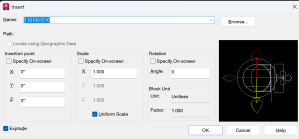
3. Pick the Browse button and steer to the folder where you have the new version of your block and select it. – Note: you MUST pick browse and reselect the block, even if the correct name is already in the Name: field. This forces the redefine.
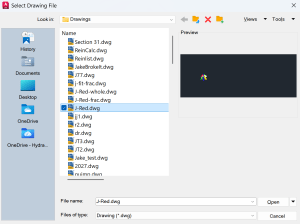
4. Pick Redefine block – this will replace all existing instances of your block, while retaining any attributes you may have


Leave a Reply