

From a customer:
“Now that I freelance for several different clients, I run into some issues with AutoList. I have to change a couple of the Top Five FIGs each time I bounce between clients projects, as I only stocklist as they request piping to allow for any building or coordination changes.
This causes issues when I have to go back to a previous project as the Fitting group info is not drawing dependent.”
But it is drawing dependent!
The Top Five FIGs are saved in the drawing when you use Fitting Mapping and when you run AutoList.
Further, you can read the Top Five stored in such a drawing. And, you can set your current Top Five to match those of the drawing you just opened. Here’s how:
Go to the Top Five by using the Choose Fitting Groups button in the Listing Tag Setup dialog or through Fitting Mapping. On this dialog are the buttons we are referring too:
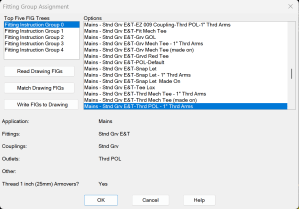
Read Drawing FIGs will display the stored FIGs in a text file
Match Drawing FIGs will display the stored FIGs and then
Write Drawing FIGs will record the current FIG setup in the drawing. This way you can make templates for each customer you have and use Match to align the two.
 The H-Factor
Leave a comment