

If you want to have only one branch line ID for an entire branch line, but are worried that AutoList will absorb other fittings into that branch line, or will miss certain sprinkler heads because of the default way it does things, then this is how to set things up properly.
The part I mention above concerning missing sprinkler heads is this:
Listing tags do not pick up fittings and heads that coincide with their insertion point. They can only ‘see’ ahead of themselves, not behind them, nor can they see what is directly underneath them.
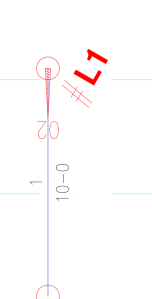
So, the sprinkler head in the following image will not be picked up in AutoList due to the fact that the listing tag is at the same point as the head itself:
What to do?
The solution in this case is to insert two listing tags at the top of the riser nipple, each pointing towards a different end of each line. So, you would put one listing tag at the end of the pipe near each coupling near the top of each riser nipple, resulting in each one pointing to another branch line end.
This will normally result in each side being listed with a different numbers, but there is a way to keep them the same.
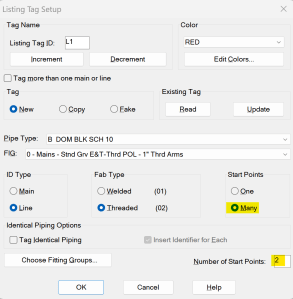
In order to get both sides of the branch line to list under the same line number, you can tag them by choosing Many in the Start Points section of the dialog. Also, you will make the number of Start Points be 2.
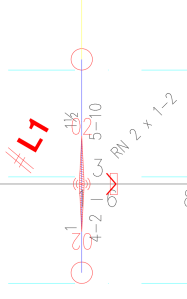
You will then be asked to pick each of the two pipes, and then asked to place one identifier.


Leave a Reply