

So, Windows 11…
The good news (for us at least) is that all our current versions of Hydratec software work well on it. I ran the update on my machine, and my already installed software worked just great. I have also run some of our install without a problem.
What’s the bad news? Nothing is broken, but a few big gripes about what they changed for no apparent good reason. They likely changed these to make Win 11 look different than Win 10, and more like a cell phone. That’s the worst reason I can think of.
Sadly, the list of things that were changed, but unhelpful has grown long enough to make a list, so here goes – click on the Item in the list, or scroll through to see them all:
List:
The File/Folder Right-Click menu
Placement of the Windows Taskbar
No Drag and Drop via Windows 11 Taskbar
Individual Items:
Item 1: The File/Folder Right-Click menu
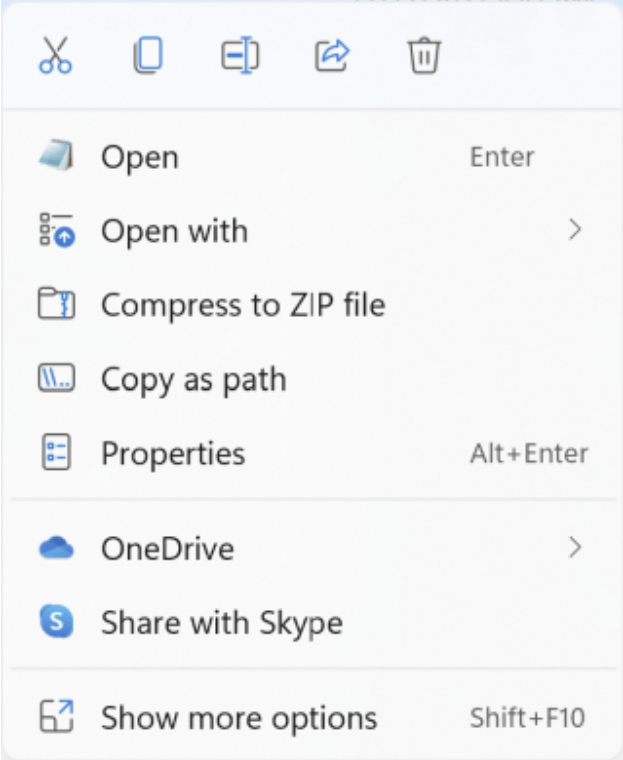
This is the menu that comes up when right-clicking on a file or folder. Along the top are icons for Cut Copy Paste Rename and Delete. I find these handy, but I just assume click on a word rather than use more brain neurons to think about the pic.
What bugs me is how much is missing. Where is New Folder, for example? I use WinZip a lot, but it’s not there either, nor are any third party tools like anti-virus tools.
To get the expanded right-click menu, you need to pick Show more options. That brings up the ‘classic’ menu. so, an extra pick. Not convenient.
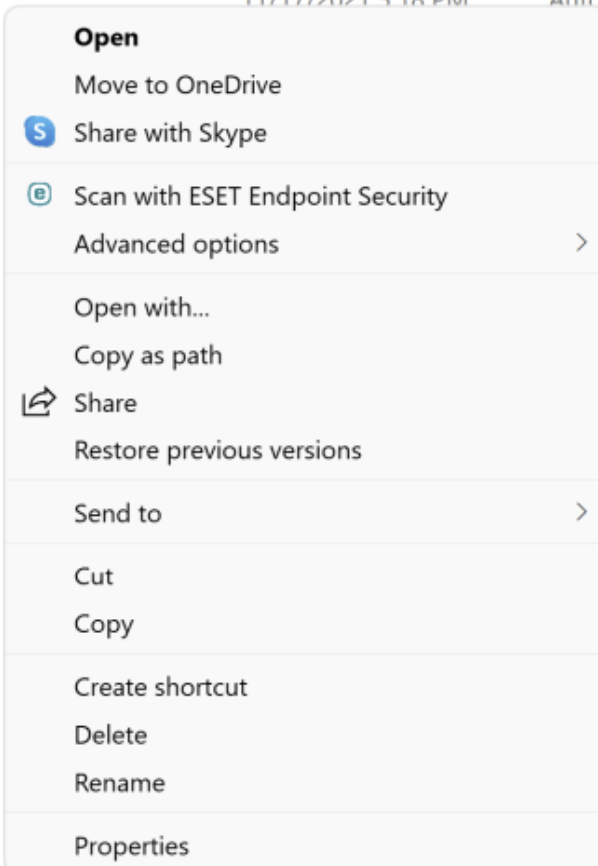
The Fix:
- Go to the Command ‘DOS’ Prompt by entering CMD in the Windows search bar.
- Copy and paste the following command into the Command Prompt, then press Enter:
reg add "HKCU\Software\Classes\CLSID\{86ca1aa0-34aa-4e8b-a509-50c905bae2a2}\InprocServer32" /f /veIf everything goes right, it should say “The operation completed successfully.”
- Close the Command Prompt window
- Reboot the computer make the override take effect.
Item 2: Placement of the Windows Taskbar
The Windows Taskbar is now centered in Windows 11, just because:

The Fix:
- Right-click on any blank part of the Taskbar. Pick Taskbar Settings
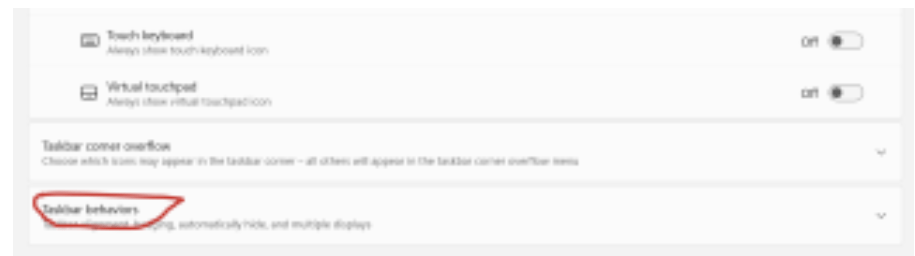
- Pick Taskbar Behaviors at near the bottom of that resulting dialog
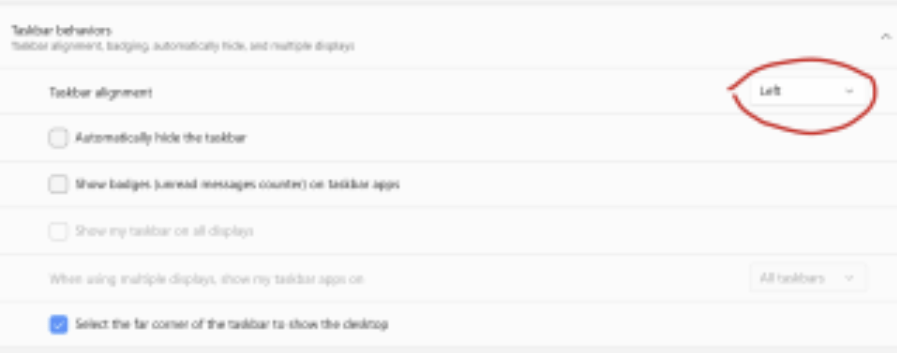
- Pick Left from the Taskbar Alignment item. The taskbar will immediately move left
Item 3: The Windows Search bar
The search bar has been removed from Windows 11. It is now accessible by picking either of the two leftmost buttons, the Windows logo or the Search glass. Not a fan.
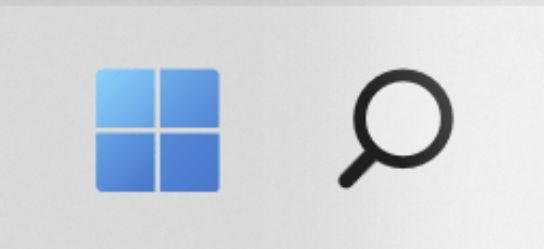
The Fix: There isn’t one
You can pick either of the two buttons, above and start typing your search term. Or, you can use the Windows logo key + S to search. Hovering over the search icon show the three most recently searched items.
You can remove the search icon from the taskbar by navigating to Settings > Personalization > Taskbar > Taskbar items and then turning off the Search option.
In Windows 10, you could pick the Windows Start button and navigate through the list to find the program you wanted to run. In Windows 11, yup, an extra click.
The apps you see when you hit the Windows logo key include some useful ones, but many are there to show how they know what the cool kids are using. Social media apps, Xbox and Prime Video. Blech. They really could have improved this if it was auto-populated with your most used apps. Nope.
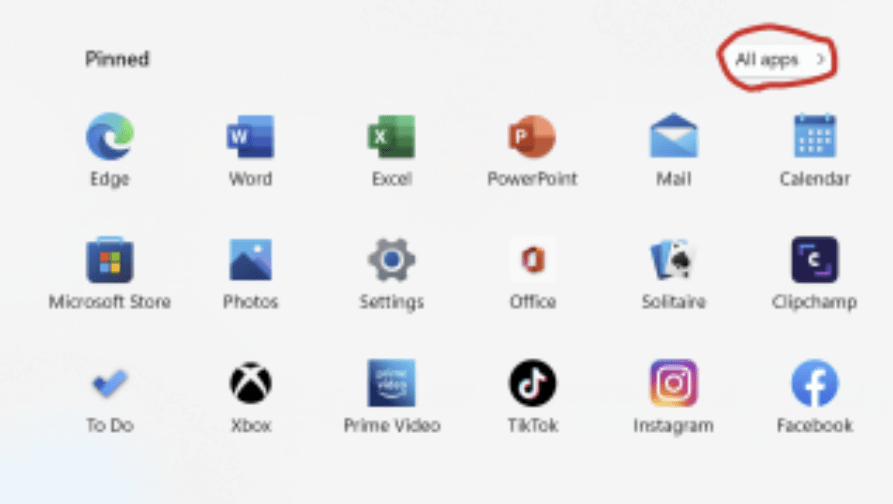
You again pick the Windows Start button, but then pick All apps to see what you used to see for free:
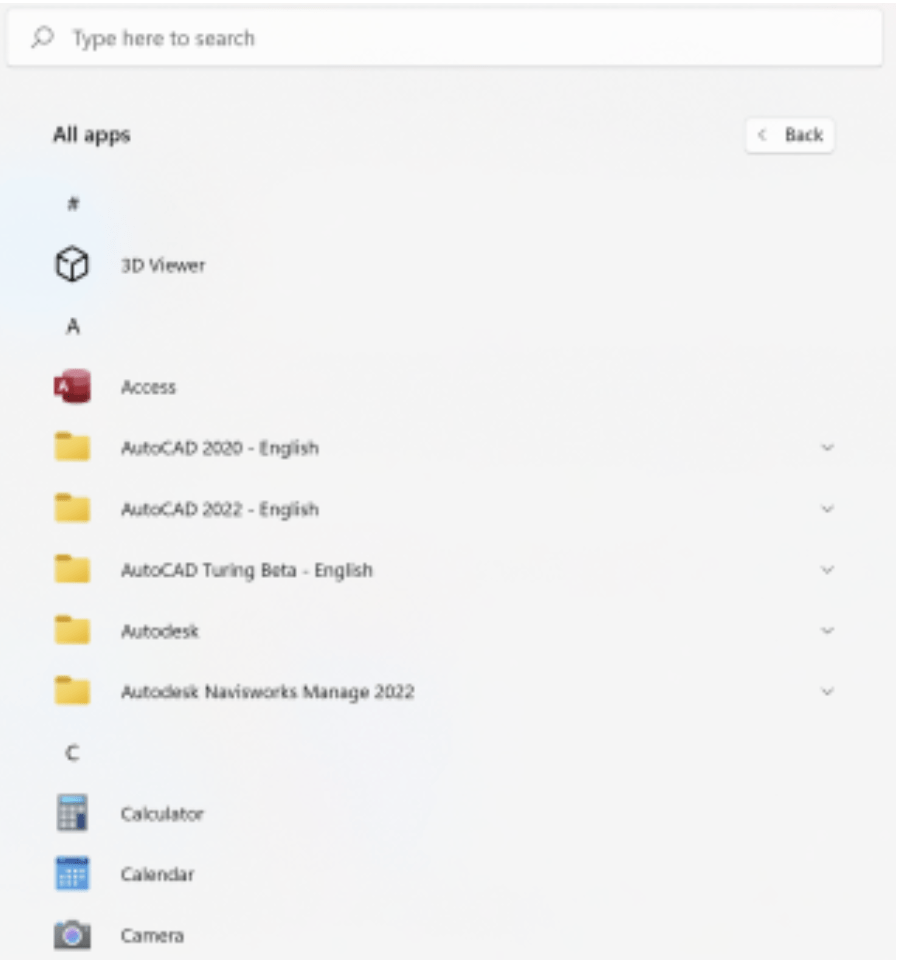
You can select an app from here, right-click and choose Pin to Start to get it on the default screen.
Microsoft even has a web page explaining the differences between 10 and 11. By the very act of writing this, they should have realized it was a bad idea to add an extra click. Find all apps and programs comparison
The Fix: – There isn’t one
Item 5: No Drag and Drop via Windows 11 Taskbar
Until Win 11, you could drag an item (like a file) down to the taskbar and pause for a moment over another application (like Outlook or Teams). The app would then open up and you could drop the item into something in that app. No longer! In Win 11 you get the No Go icon when you hover over the taskbar with dragged item in hand. Apparently they are using a new programming interface to rewrite the taskbar, but why they would not implement this is ridiculous.
So, you need to have both apps displayed and position them so that you can move the file from one app to another without losing focus.Ugh.
The Fix: A third party app. this one, available on the Microsoft Store, says it will do it. I have not tried it myself.
Drag and Drop Toolbar for Windows 11
Until I find something else to gripe about, have a good week!
 The H-Factor
Leave a comment