

HydraCAD and AutoCAD both have methods of creating typing shortcuts/aliases to commands. HydraCAD does not deliberately use the same key sequences as AutoCAD. I say usually, because sometimes AutoCAD adds new shortcuts which share our Aliases. We don’t change ours to stay out of their way. HydraCAD aliases take precedence because of the way each program is loaded.
The AutoCAD aliases can be easily changed. Many people (including myself) change ‘C‘ to be COPY instead of the default CIRCLE, for example.
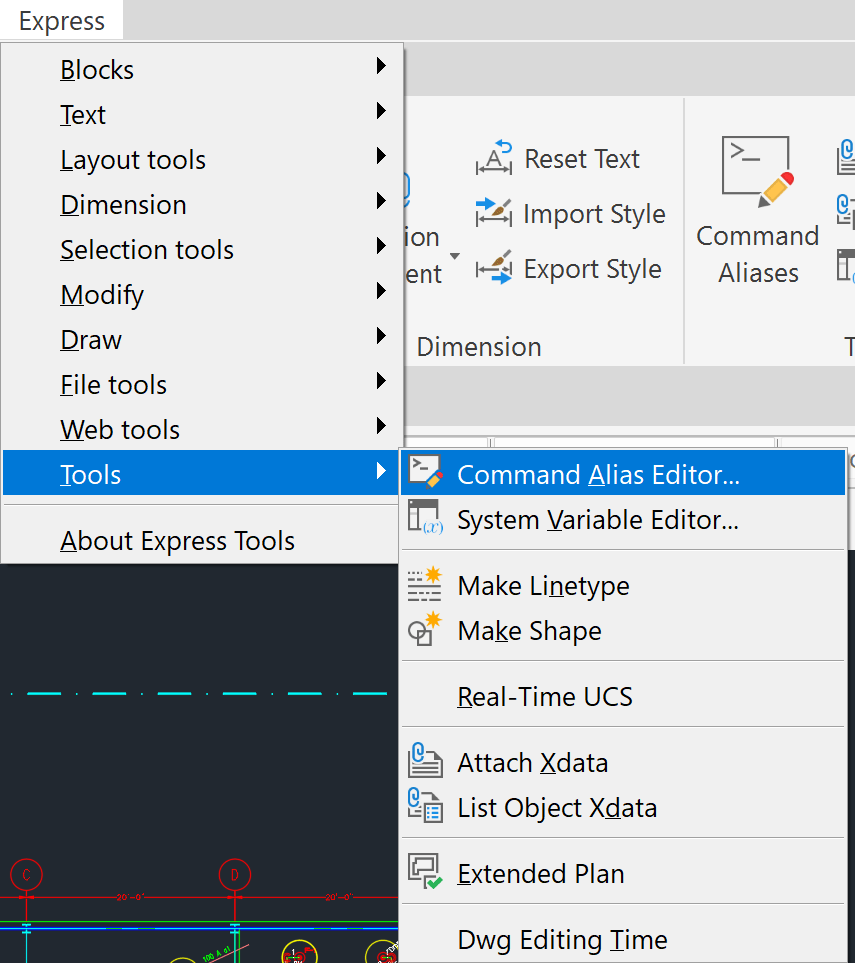
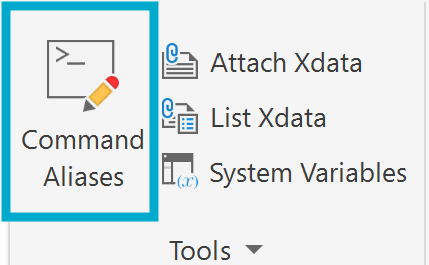
The AutoCAD aliases are stored in the ACAD.PGP file in the \Program Files\Autodesk\AutoCAD 20##\UserDataCache\en-us\Support folder, where ## is the last two digits of the version of AutoCAD you are using. You can best edit this file by using the AutoCAD Express tool Command Alias Editor from the Ribbon or dropdown menu, or by typing in ALIASEDIT.
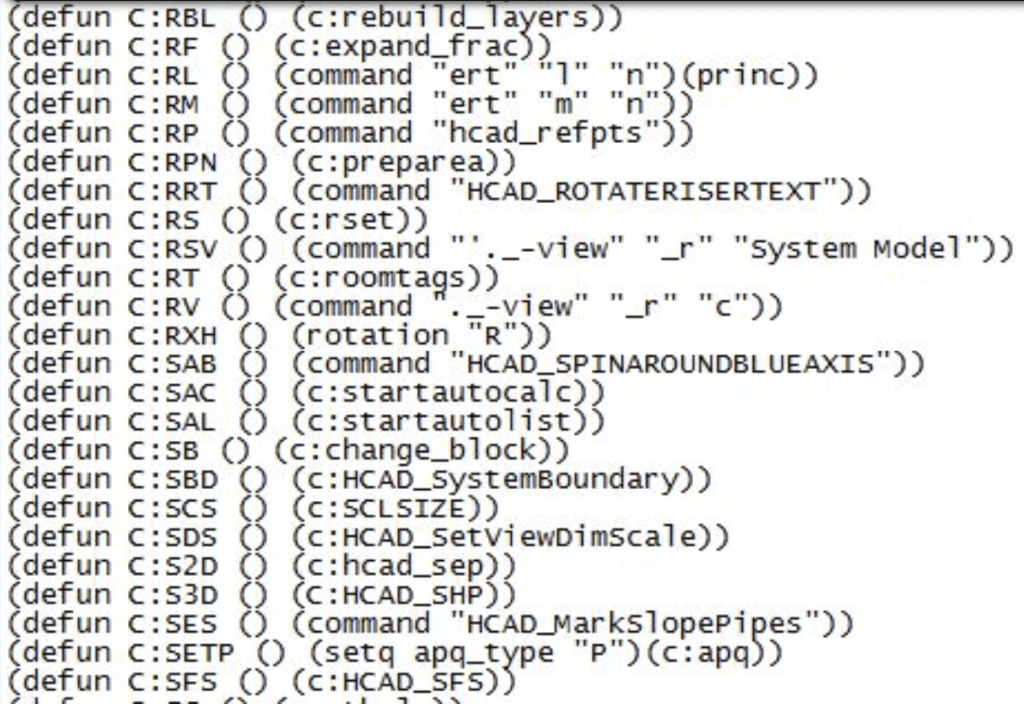
HydraCAD aliases are in a different file, named HC_ALOAD.LSP, located in the \HES\HydraCAD\Ver50\Programs\Version## folder, where ## is the version of HydraCAD you are using. It can also be customized by using a text editor (like NOTEPAD), but you must be more careful when editing this file than with the ACAD.PGP, as ours uses actual programming language.
Opening HC_ALOAD.LSP, you will see we use LISP functions to create them.
Example:
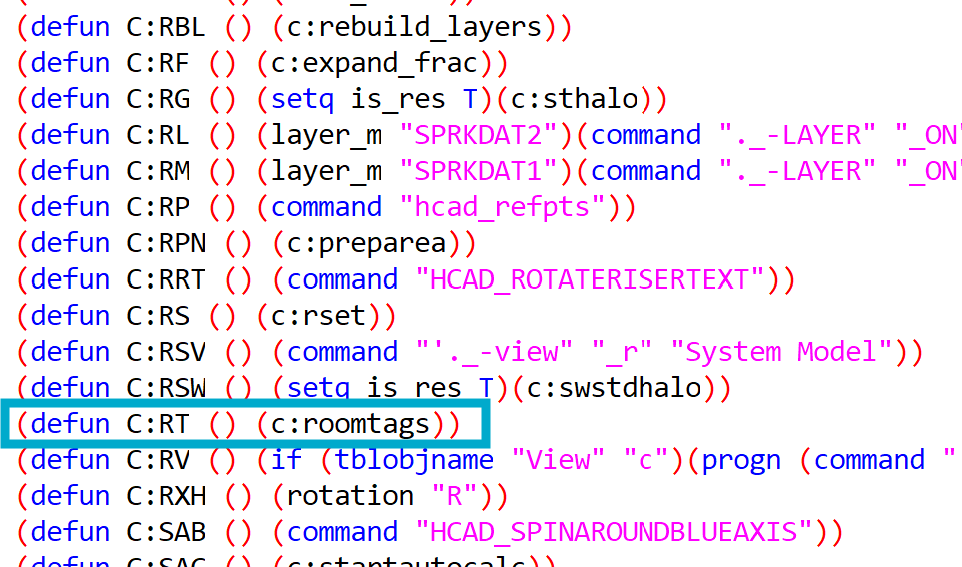
You want to use the key sequence RT as an alias of ROTATE. RT already used by HydraCAD for Roomtags, so you will have to Add RT to the AutoCAD alias list (ACAD.PGP) and either remove it from the HydraCAD list or rename the existing HydraCAD sequence to something else.
Before you open the HC_ALOAD.LSP file, save a backup copy of it, in case something goes wrong.
Locate the RT alias in the HydraCAD list. Now, change RT to be RMT. Save the file. Next time you open AutoCAD, RMT will start the Roomtags command.
Open the ACAD.PGP file using the express tool mentioned above.
Scroll down to the Rs. Notice that RT is not being used for any other AutoCAD command.
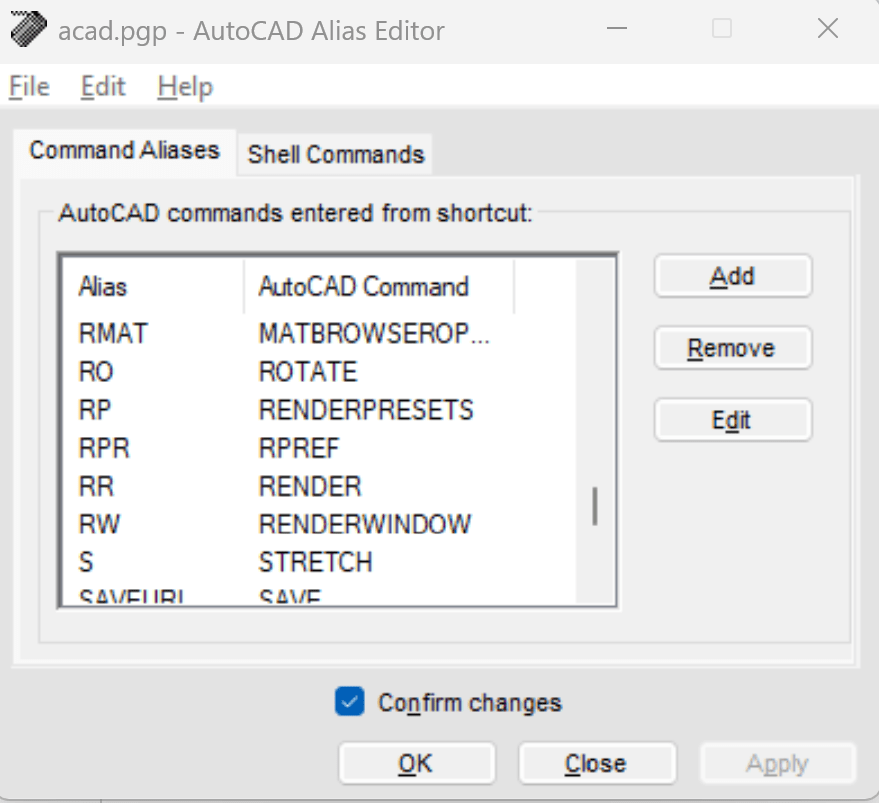
Pick the Add button. Type in RT in the Alias field and begin to type ROTATE or scroll through the list of commands available in the AutoCAD Command: field.
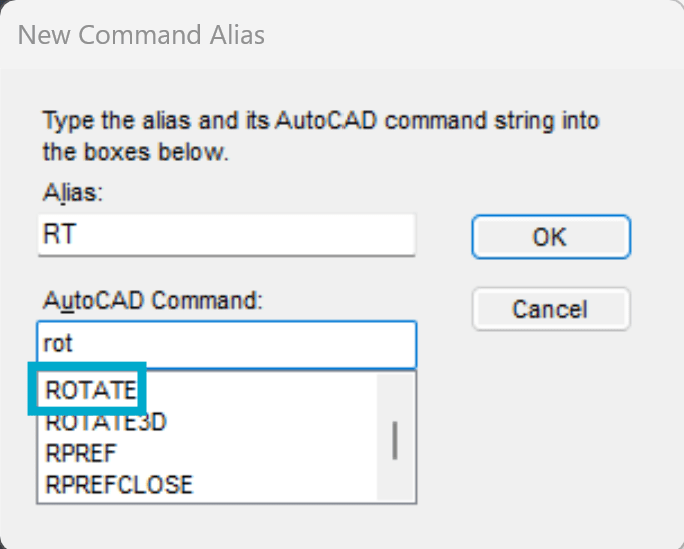
Pick OK. Pick OK again. Close AutoCAD/HydraCAD and reopen. Your alias should work now.
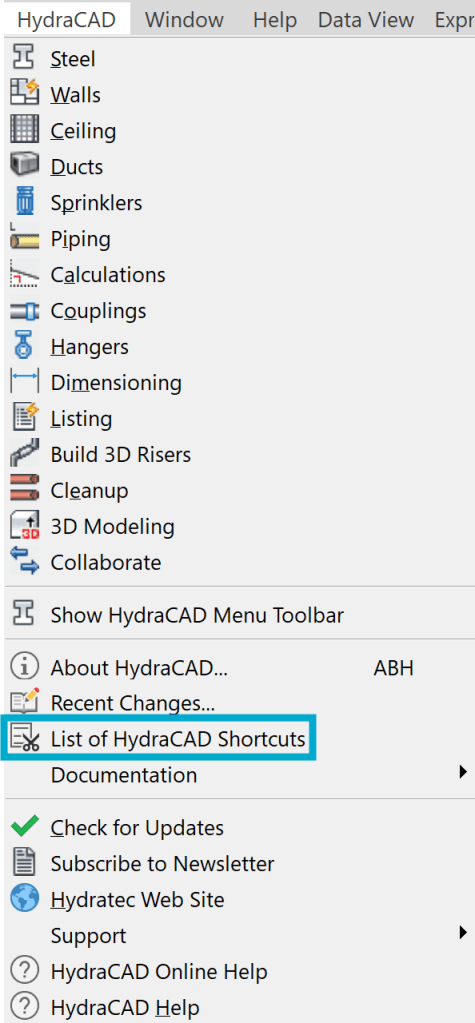
PS – A complete list of HydraCAD aliases can be found by picking the List of HydraCAD Shortcuts command from the HydraCAD pulldown menu. You can edit this file to update this list to reflect your changes. Future updates will probably replace this file and the HC_ALOAD.LSP file, so make sure you have copies of your work to bring back if necessary.


Leave a Reply