

A Customer asked me the following question (paraphrased):
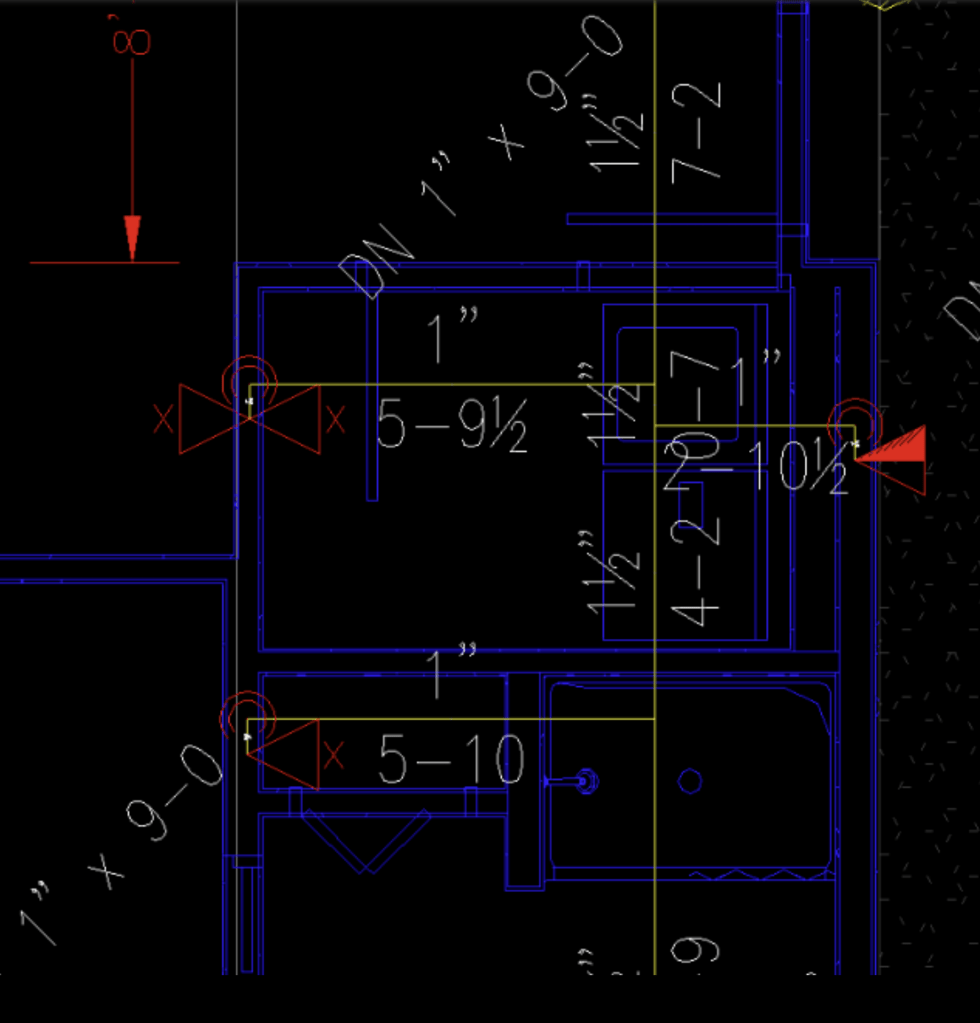
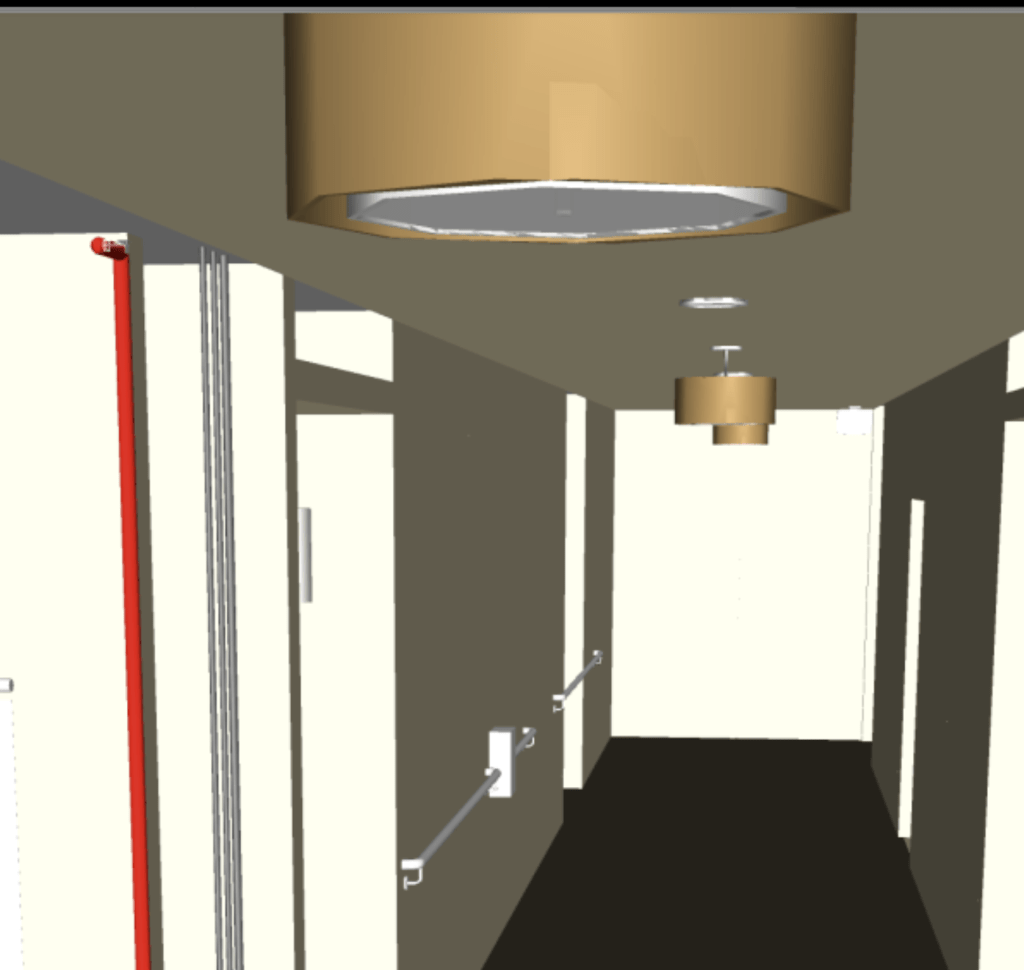
Q: I am currently designing an apartment bldg using sidewall sprinklers for the top level. And this is also a BIM project so our piping is imported into Navis Works. If you look at the attached sidewall 2D photo. You will see that I have the sidewall attached to piping inside of the wall. (this is so HydraLIST will list the fitting as a 1 x ½ CPVC sprinkler elbow). However in my model the piping and sprinkler are hidden inside of the wall. … (I would like to) make the sidewall sprinkler protrude from the wall so it is visible in the Navis Model.
I removed a wall panel in Navis so you can see the pipe and sprinkler in the attached sidewall model photo:
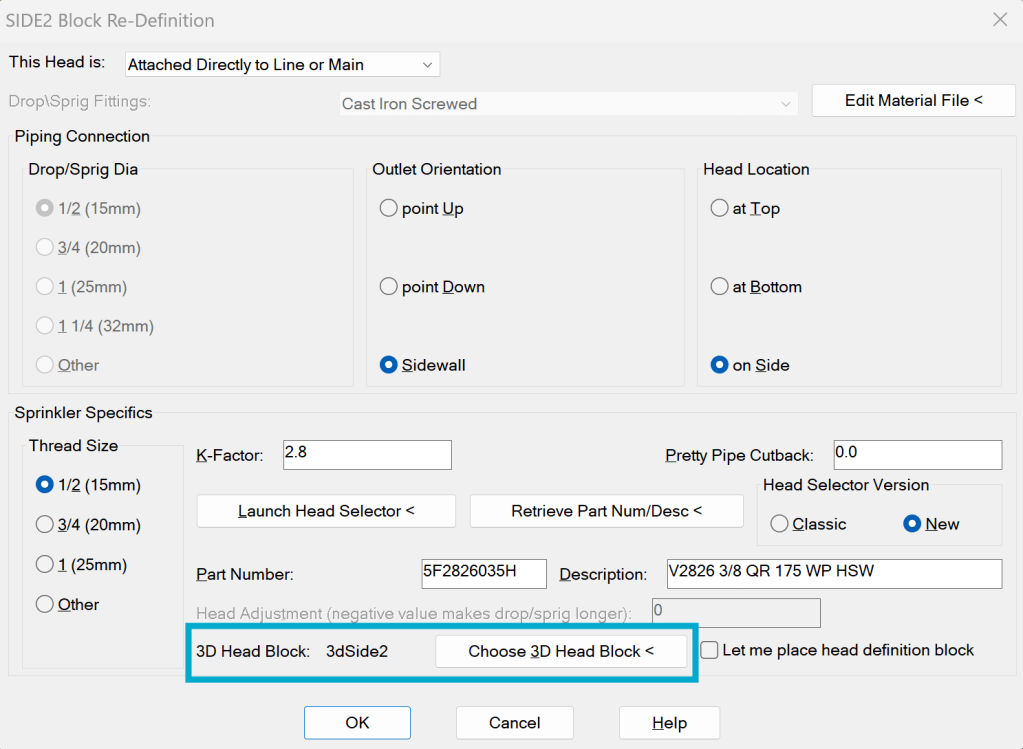
A: The solution here is not to modify the piping arrangement in 2D so that the 3D model looks the ‘right’ way. The key is to instead modify the 3D Sprinkler Head Block. When you define a sprinkler head, one is already chosen for you as a default. You have the option to specify which 3D head will be used:
If you pick ‘Choose 3D Head Block <‘, you will be directed to the \HES\HydraCAD\Ver50\Programs\HEADS\3dHeads folder. There, you will find two or three dozen 3D heard representations. These are assigned to each defined sprinkler head type when created. They show in the 3D model generated when you raise the building up.
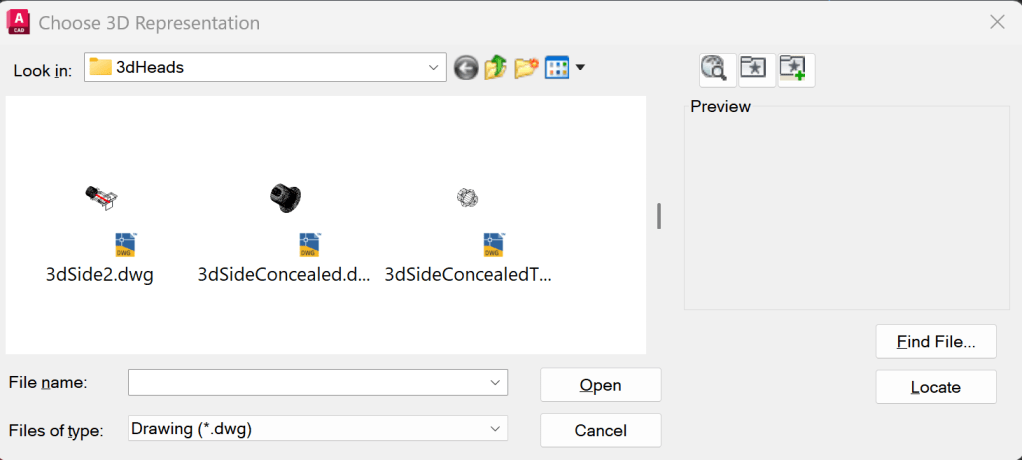
Find the representation closest to the head style you want and then open that drawing directly in HydraCAD. Modify it as you see fit and do a SaveAs to give it a new name (so you don’t replace any of our default values).


Leave a Reply