

In even a regular-sized drawing it can be hard to determine what is a main, what is a wall, what is a partition, etc. Some people use the Pretty Pipes command to help with this, but that has a few drawbacks, especially when it makes it hard to select objects.
Lineweights can make that easier, it updates automatically as new piping is drawn and it does not add any drawing elements, making selection easier.
In this small drawing, note the unremarkable look of the Lines and Mains at left:
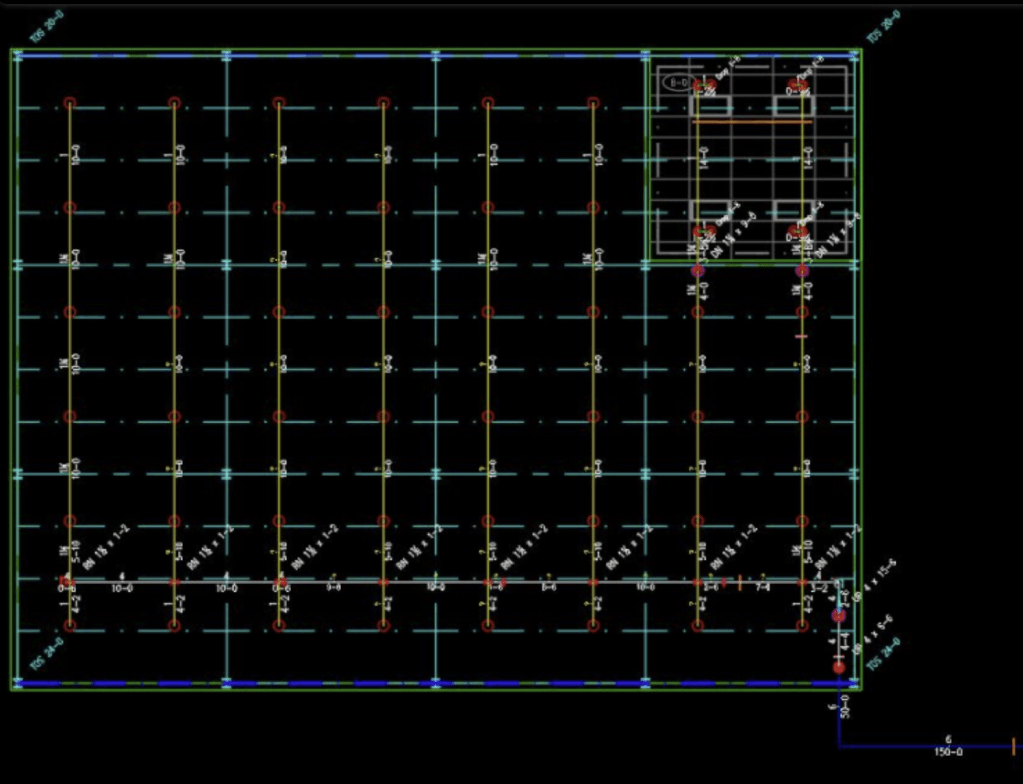
With Lineweights turned on, it looks like this:
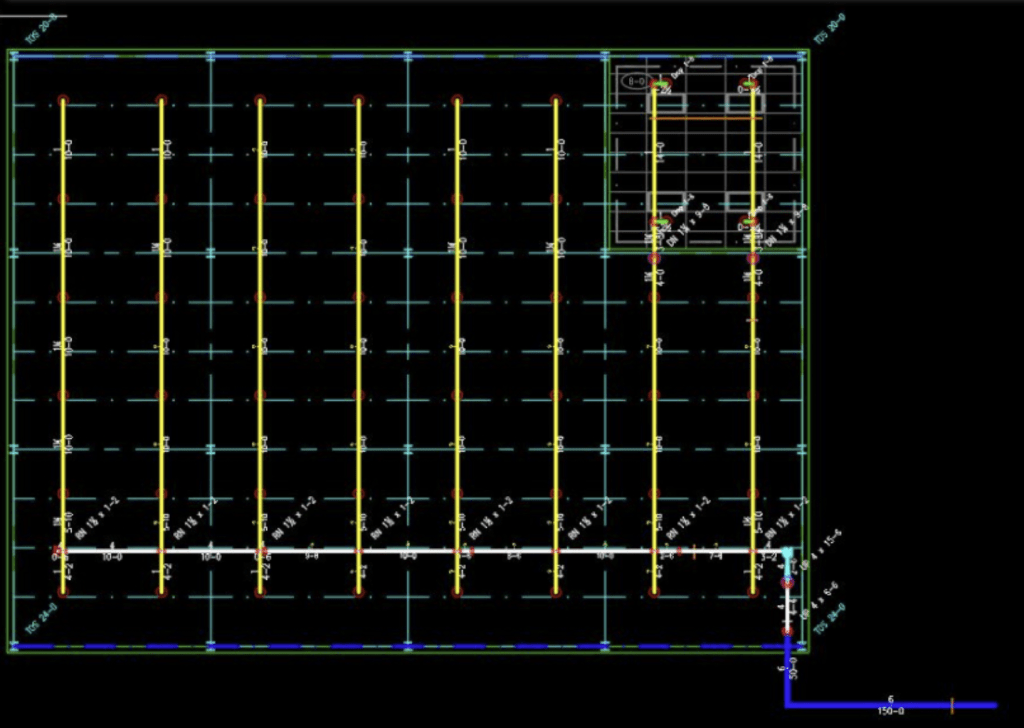
The lines and mains pop out and are easy to recognize. Underground and Armovers also stand out, if present.
Lineweights are defined by layer. Opening up the Layer palette, note the Lineweight column.
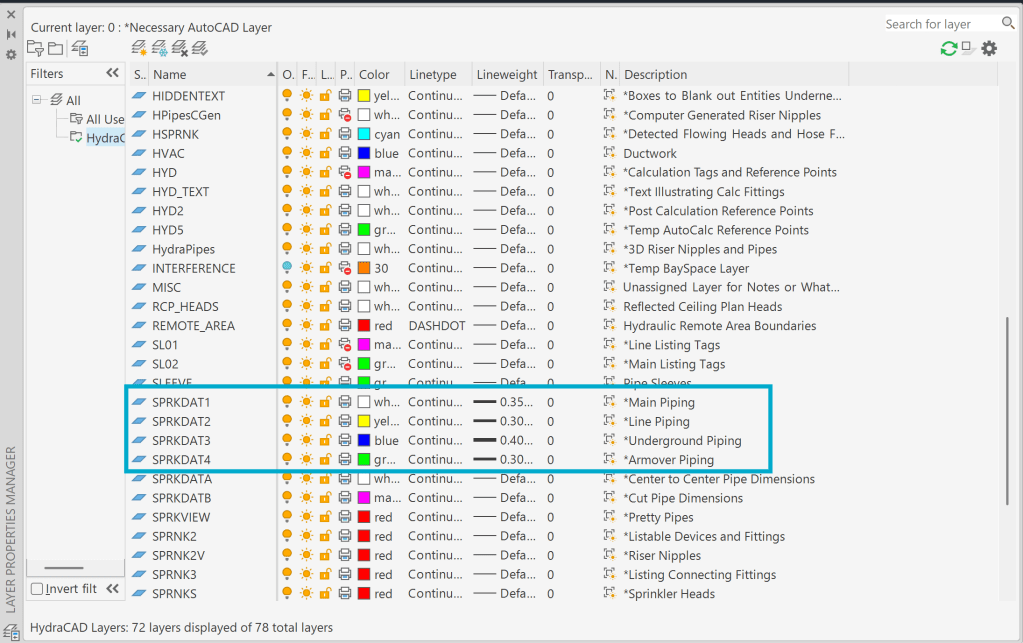
These are the default HydraCAD layers, as defined in our templates and layer scripts. If you do not see the Lineweights defined, you may be using an old template.
The LWDISPLAY command applies these Lineweights to the drawing elements.
Type it in, and answer ON to see the lineweights, or select the Show / Hide Lineweight button on the bottom of the AutoCAD screen.

If you do not see this option, select the Customization button at far right and select LineWeight to turn it on



Leave a Reply