

A customer from Sweden asked the following this week:
“I have a question about HydraCALC, is there a way to change the default path for where the program initially finds its projects to open?
For instance, now when I press OPEN, it always open “C:\HES\HydraCALC\Ver50\Data\Jobs”, we have our projects in a different location, so for me it would be nice if I could change the default location into our project folder.”
The way to do this is through the desktop shortcut for HydraCALC. Right-click on the shortcut and pick Copy. Then right-click somewhere on your desktop and pick Paste. This will give you a second shortcut to work with, while preserving the original one,
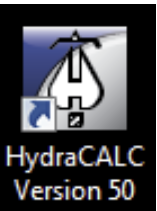
Right-click on the shortcut and pick Properties. Then, pick the Shortcut Tab. Notice the Start in: field. That tells HydraCALC where to look for Jobs when you open or save one.
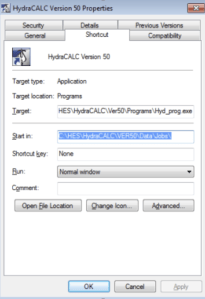
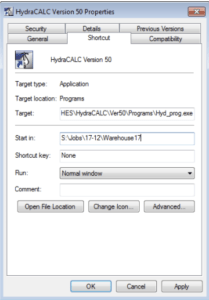
Change the Start in: field to be the location you want. Pick OK
Right-click again on the shortcut and pick Rename. Give the shortcut an appropriate name, so you can find it next time.
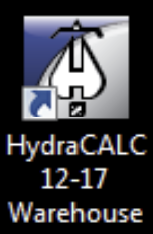
You can make as many shortcuts as you like, setting each one to a different job location.
HydraLIST and HydraCAD follow the same instructions.


Leave a Reply