

From a customer a little while back:
Q: I would like the head guide to have an option to spot the head based on the last one (with Ortho on so they line up). Kind of like the insert multiple sprinklers command. Or add the option to the “insert multiple” where you can access the head guide. I am using the custom guide to layout heads in an attic and am having a hard time getting them to line up.
A: This one took me a little bit to figure out. Changing the program for Head Guide is problematic, since we are taking advantage of a specific feature available inside AutoCAD – one that I won’t bore you with, but is not used very often by drafters, if ever. Because if the way it works, we can’t just make it do other things while running it. There is, however, another way to achieve what this custom wants as a result. And that means activating a command before running Head Guide. That command is SNAP (not, OSNAP). Setting the SNAP point will make the cross-hairs move in an Ortho-like motion. We already have a command to automate this – Align Crosshairs with Ceiling.
This is the room. We can use a head guide to run a line of heads up the middle:

Pick Align Crosshairs with Ceiling on the Sprinkler Toolbar.
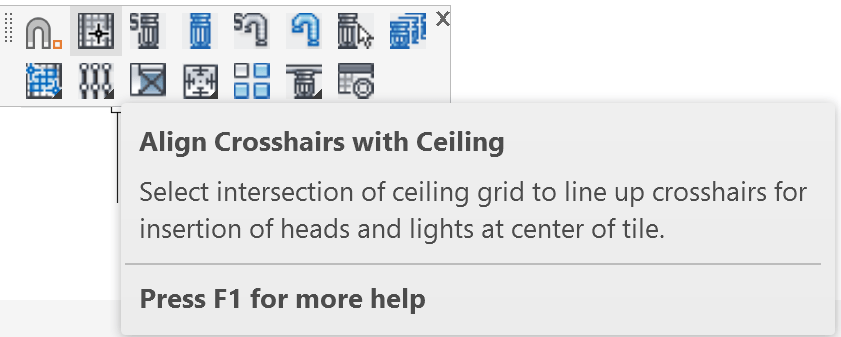
Picking this will ask you to select a base point. Select a corner of the room, or even the midpoint of the lower leg

The cross-hairs will now jump in 1 foot increments as you move them. This will work, but it may be a little too ‘jiggly’ for some. To change the SNAP increment, type in SNAP at the command prompt and type in the desired increment. 2′ would probably be best for most situations. But, if you have specific spacing requirements, you could set it to that. A reminder – SNAP can be toggled on and off with the F9 key.
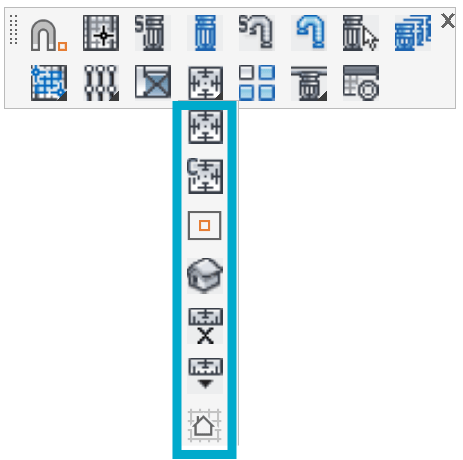
Pick on one of the Head Guide commands. i am using the first one, the Standard guide.
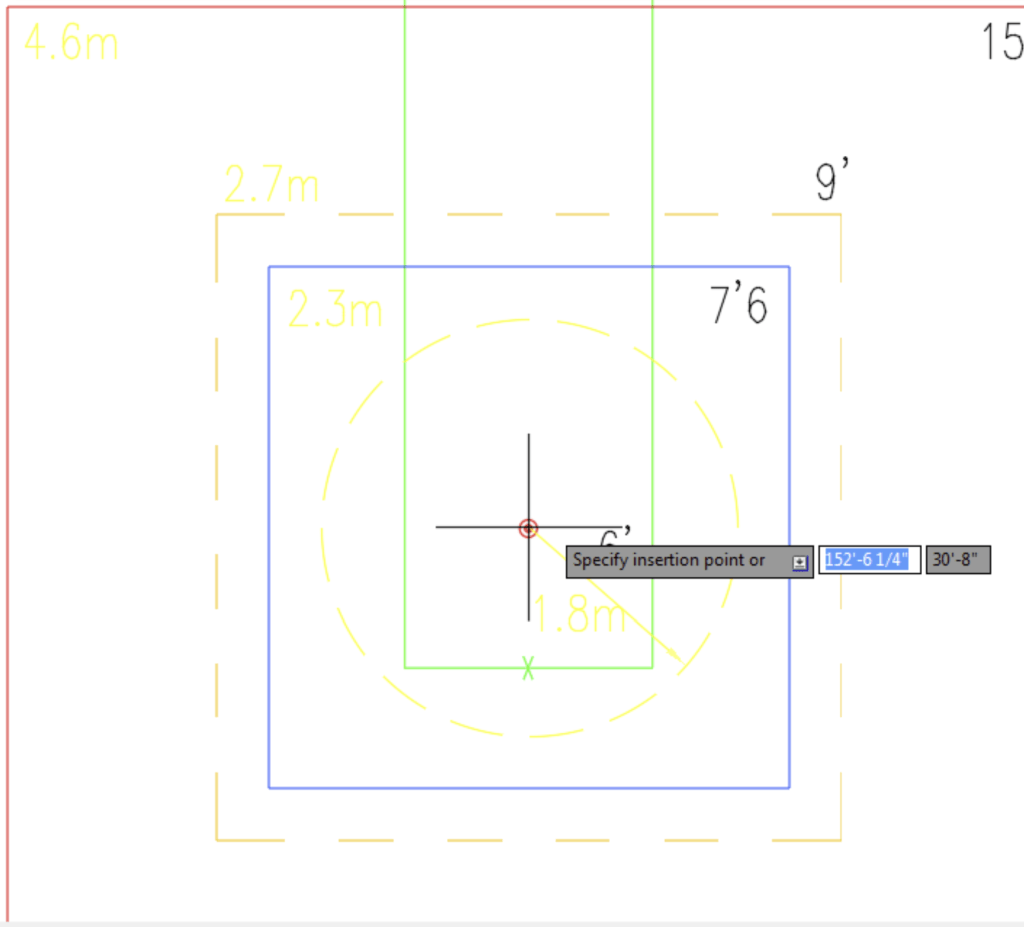
Now, hover the Head Guide over the insertion point of the first head. Then, left click and insert the head.
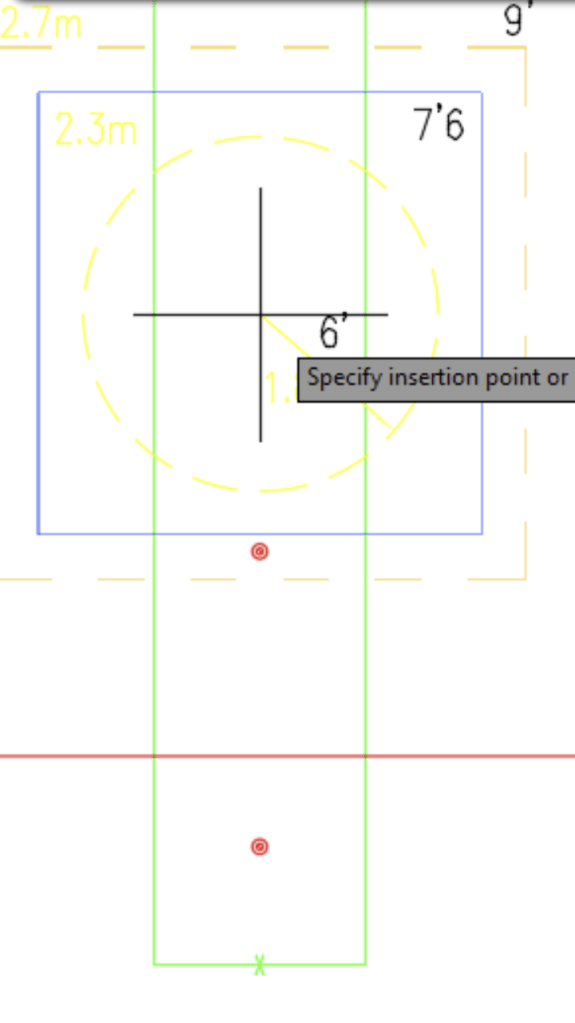
Next, move the cross-hairs up to the next insert point and left click again, until you have your heads spotted.
Remember, hit F9 to turn off SNAP or pick Align Crosshairs with Ceiling again. That will turn off SNAP before prompting you to pick another insertion point to align.


Leave a Reply