
I found this while googling for a solution to a customer problem – whenever he selected an object, all objects touching that object were also selected. I did not know AutoCAD had such an option, but they call is 'fast selection'. Click here for most of what you see below Ways to use AutoCAD Object Selection and also check these out: Selection Options in AutoCAD 2012, Object Selection in AutoCAD and Use all of your selection options
Listed, they are:
1. Pick Single
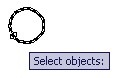
You can pick single object when AutoCAD ask you to select objects.
2. Window
You can define a window selection by clicking at two points. Click first point on the left side, and 2nd point on the right side. This will select all elements inside the window.
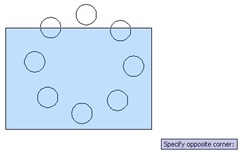 |
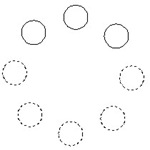
This action will select: (dotted circles are the selection) |
 |
If you pick your points right then left, then it will be cross window selection (will be explained next). This two are the default window selection.
If you want to activate window selection, type W then [enter]. Type it when AutoCAD ask you: select objects…
Even you pick points from right then left, it will be window selection.
3. Cross Window
Basically if your window selection defined from right to left, then it will be cross window selection. It will select all elements inside and touching the window.
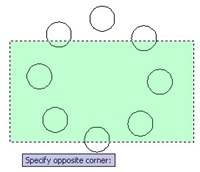 |
This action will select: | 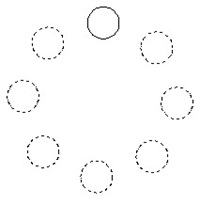 |
You can override to activate cross window selection by typing C then [enter].
4. Fence
You can select drawing elements by defining ‘a fence’ that touched objects you wanted. Just type F then [enter] to activate it. After you finish defining your fence, press [enter] to select.
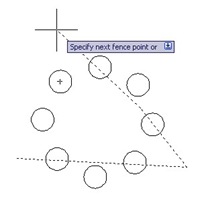 |
This action will select: | 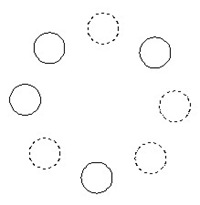 |
5. Window Polygon
This option behave as window selection, but you can define unlimited points for that window. Just type WP then [enter] to activate it. All elements inside the window will be selected.
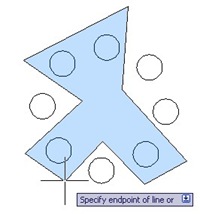 |
This action will select: | 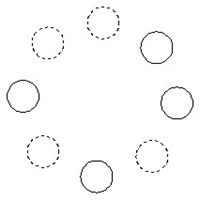 |
6. Crossing Polygon
Similar to cross window selection. CP
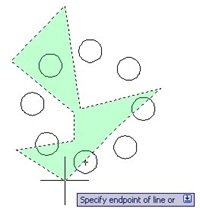 |
This action will select: | 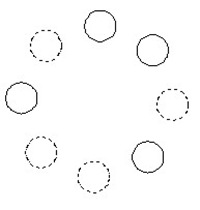 |
7. Touching Objects
When AutoCAD ask you to select object, type ‘FS then [enter]. We use ‘ for transparent use. Pick your object, then all objects touching it will be selected.
Select objects: ‘FS
Use ‘FSMODE to control chain selection.
FSMODE = OFF
Select touching object: 3 object(s) found. 3 found, 7 totalSelect objects:
Exiting Fastsel
FASTSEL is an express tool. So if you don’t have express tools installed, it might not work.
This selection is controlled by FSMODE system variable.
FSMODE = OFF (default), it will select objects touching your picked object only.
FSMODE = ON, it will select objects touching it, and all objects touching them too.
8. Cycle Overlapping Objects
If you have many overlapped drawing elements or close to each other, and you are too lazy to zoom in, you can cycle between them by pressing [shift] + [space]. Hold your [shift] key, and press [space] several times until you found your object. Release your keyboard key, then click your mouse.
9. Select Previous Selection or Last Object
Did you ever want to select your previous selection? Easy, just type P then [enter] when AutoCAD ask you to do selection!
What about last object created? Either the last drawn or result from modify operations such as copy. Type L then [enter]!
10. Remove/Add
Sometimes it’s easier to select all elements then remove some of them from your selection set. You can do this by holding [shift] and select object you want to exclude. OR, you can type R then [enter] to switch to remove mode.
To activate add objects, type A then [enter].
11. Undo Selection
You can undo your last object selection by typing U [enter] while your selection set is still active. This only undoing your last selection.
12. All
Type in ALL to get all objects that are thawed and unlocked
 The H-Factor
Leave a comment