

Today’s customer question: “How do you draw an Up/Down sprinkler (Upright on a Tee, with a Pendent Drop) in HydraCAD?”
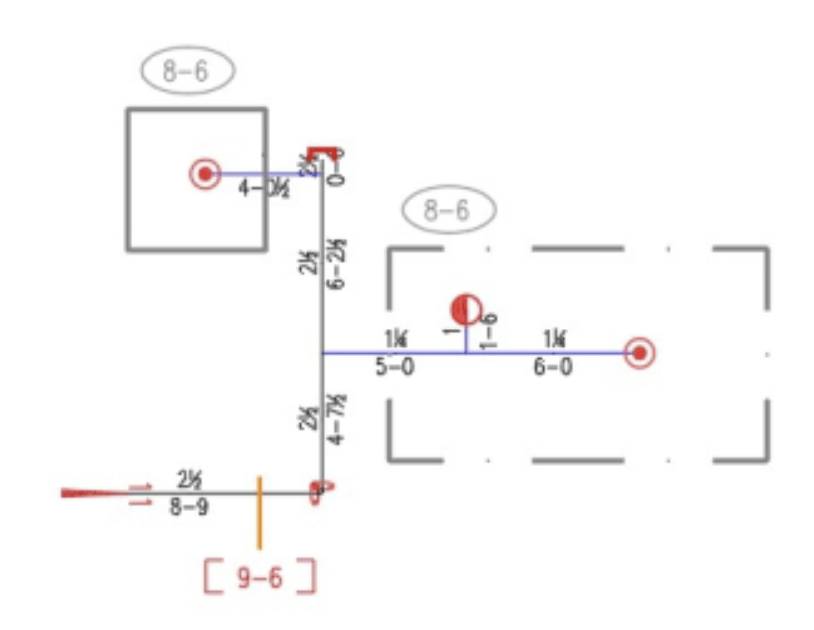
This is actually easier than it seems. You just have to define the two heads, as usual, and insert them at the same X,Y location (i.e. on top of each other).
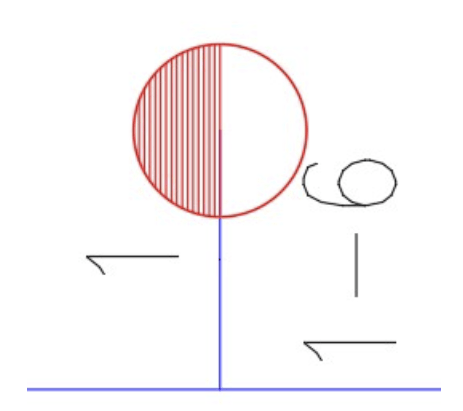
Back in the ‘old days’, designers would draw such a combination using this symbol:
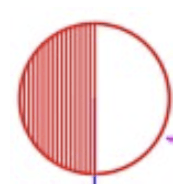
In this example, we will create the same symbol as far as looks are concerned
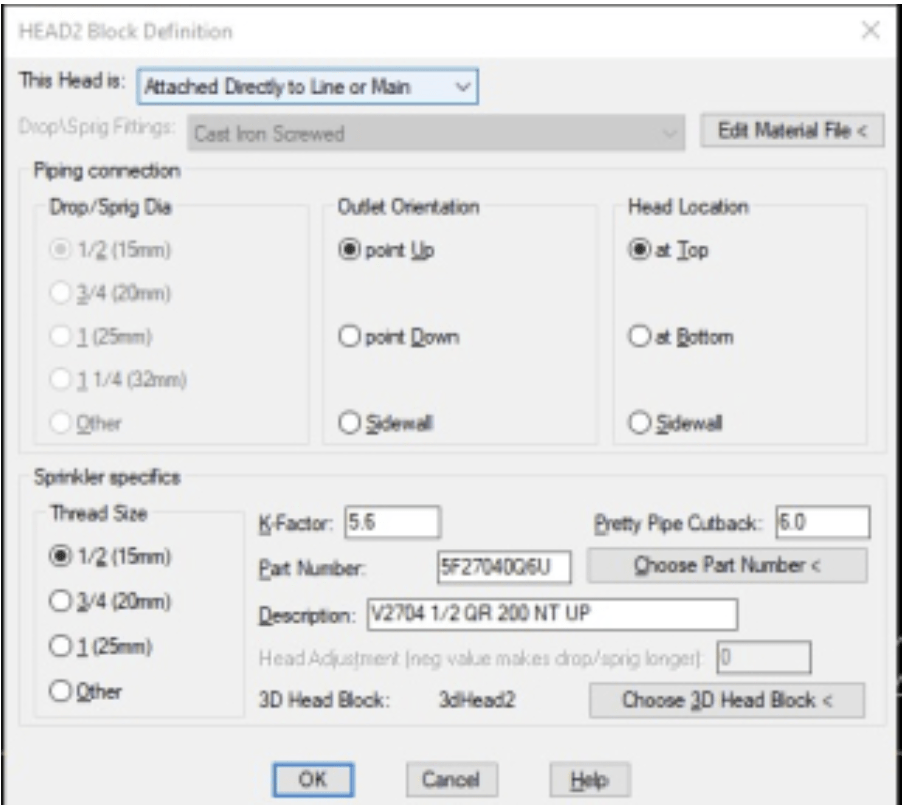
1. Define the Upright head like usual. We suggest using HEAD2 if you haven’t already. That is the symbol that looks like this:
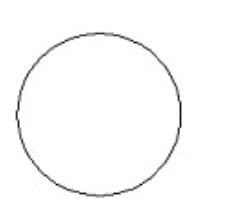
This head should be defined as Attached Directly to a Line or Main
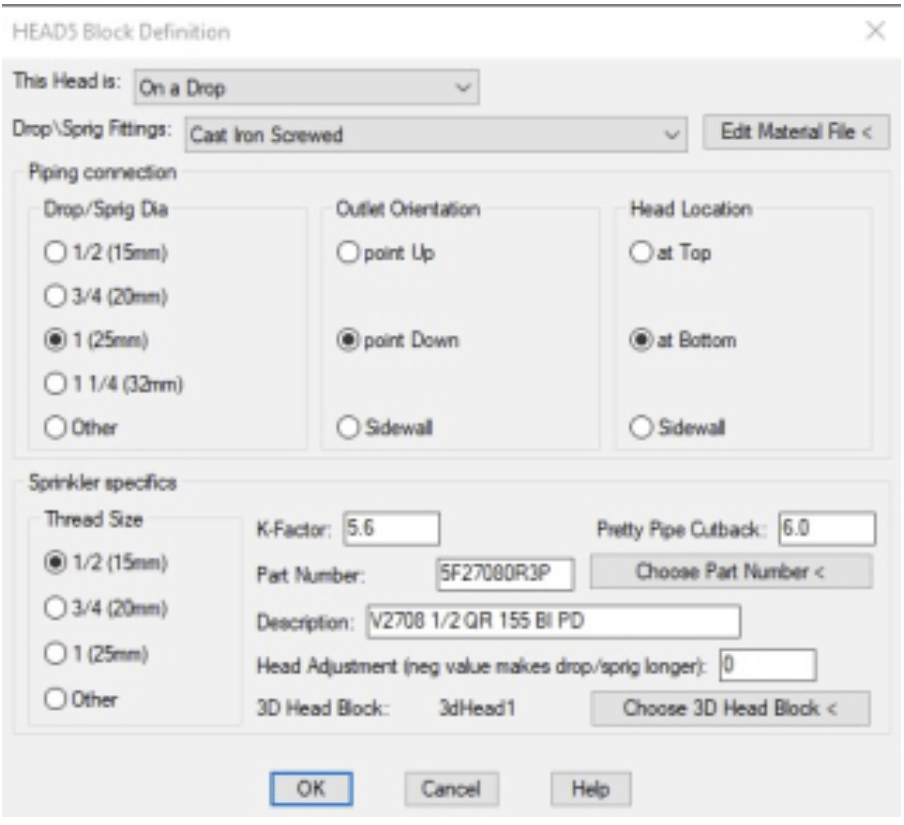
2. Define the Pendent head like usual. We suggest using HEAD5 if you haven’t already. That is the symbol that looks like this:
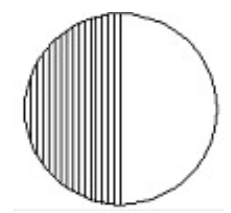
This head should be defined as On a Drop
3. Insert one of each of them at the location of the bullhead tee. Notice this looks exactly like the old-school head at top
4. Insert a Drop Window around the pendent head(s). Remember that a drop window will only affect heads on a drop, so it is ignored in the case up upright heads
5. Tag it for listing and run it through!
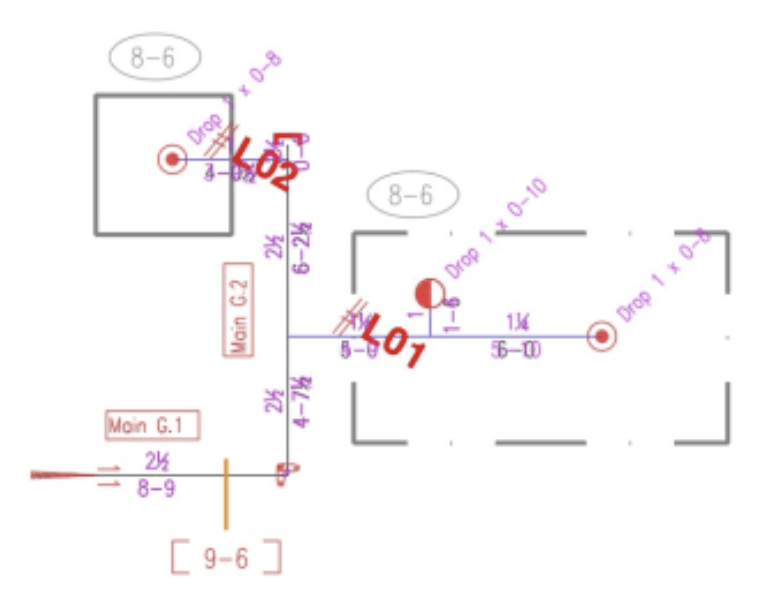
Notice the Drop was tagged with its info
In HydraLIST, this is what got picked up:

Note 1: If you need an upright on a sprig at the same X,Y location as the pendent, then you would defined HEAD2 as being On a Sprig. You would also place a spring window (using the Drop Window command)
Note 2: If you already used HEAD2 or HEAD5 for some other head definition, you can make create other heads that look the same. Find that info here: Creating Sprinkler Heads


Leave a Reply