

Many of our users aren’t aware of the fact they can customize the cover sheet logo in HydraCALC. These steps are pretty easy and can normally be done in about 5 minutes.
1. You’ll need your logo, preferably as a .BMP and with a resolution of 500×500 pixels or greater, but any image type will do.
2. Open your image file using Microsoft Paint. Check the pixel size of your canvas; you’re trying to get to as close to a square image as possible. You can click the grips at the edges of your canvas to adjust it as necessary.
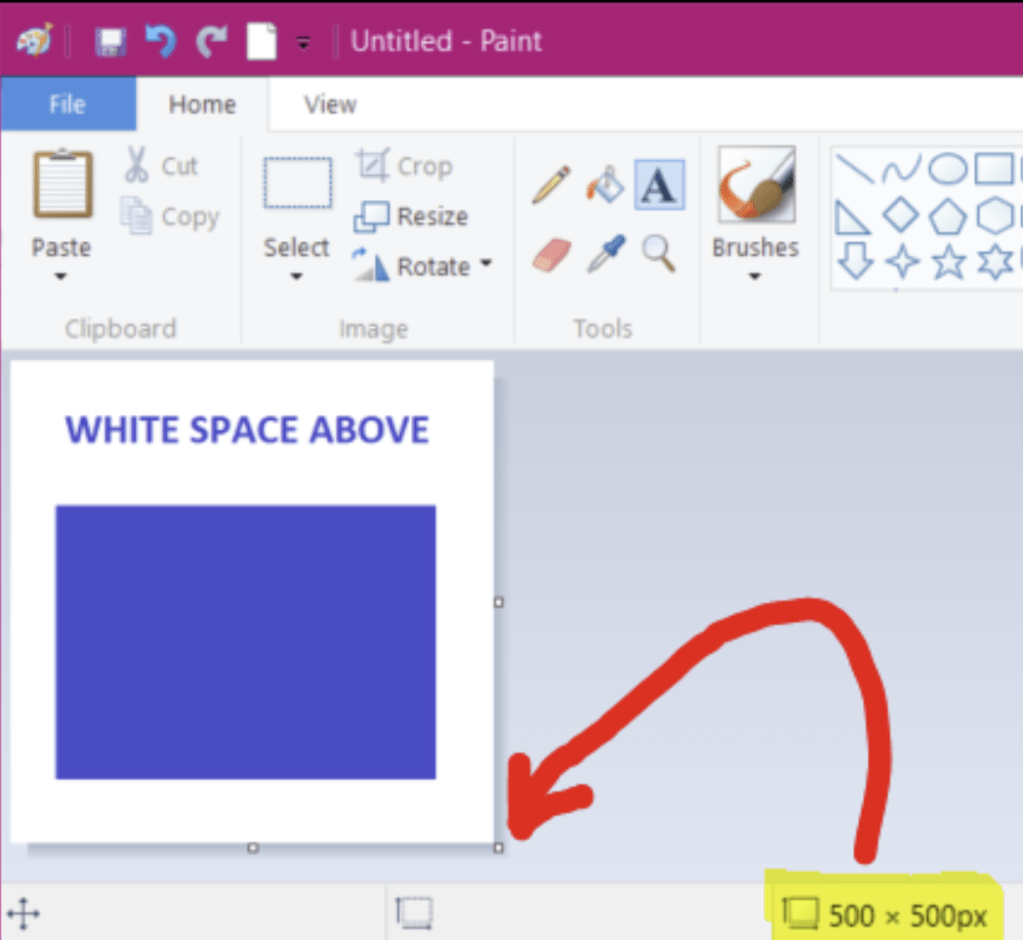
3. In the image above, the canvas is exactly 500 x 500 pixels. Make sure to leave some white space near the top, this means your image will be closer to the bottom, not centered inside the canvas.
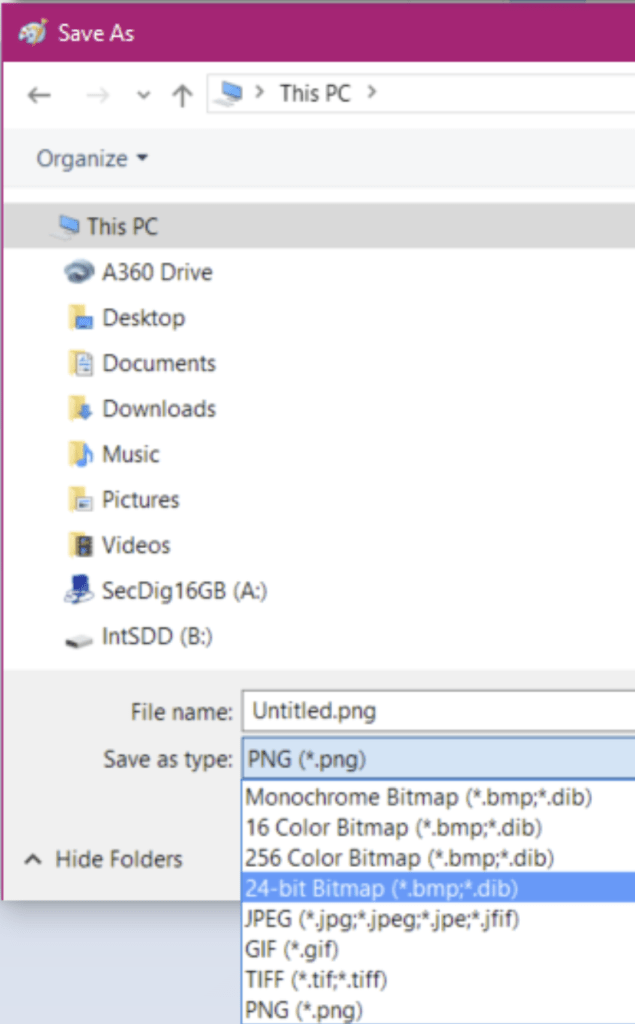
4. When ready, save the image as a .BMP file. When you click ‘Save as…’, select the option 24-bit Bitmap (*.bmp)
Save the file to this folder [local drive]:\HES\HydraCALC\Ver50\Data\Setup\Reports and use the filename yourCompanyName
5. Using Windows File Explorer, browse to the location [local drive]:\HES\HydraCALC\Ver50\Data\Setup\Reports and locate a file called BLANK.DAT. Make a copy of it then rename it to yourCompanyName.DAT
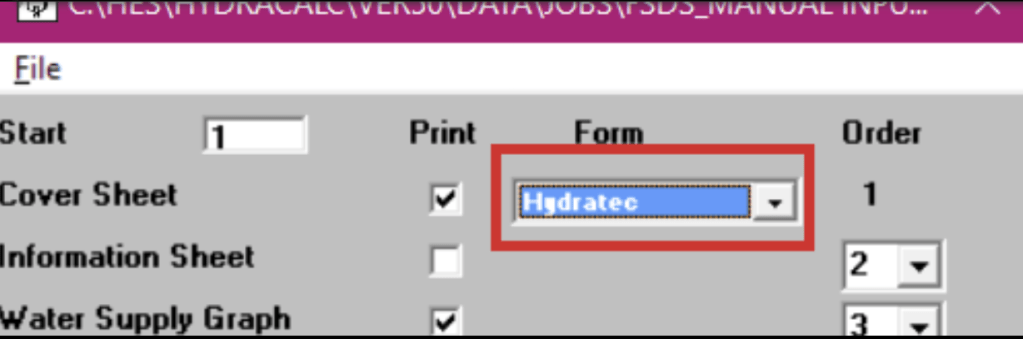
6. You can check your logo by going to HydraCALC, then go to File|Print Final. When HydraVIEW opens, in the Cover Sheet drop down, you’ll see your newly created logo in the list.
7. If you feel some adjustments are necessary, you can click on Tools|Page Setup then adjust the values in the Cover Sheet Graphics area in regards to the Tab, Width & Height. The tab value pushes the image from the left to the right, and your width and height are a ratio of your image’s width and height.
Good luck and get in touch if you need any clarification.


Leave a Reply