

From a customer:
“I have a question about modifying hanger symbols. Here’s the issue, many times the Lister’s complain that our plans are too busy, because pipe diameters lay over hanger numbers, etc. I know we can use the auto cleanup but I really want to eliminate the hanger # & either modify an existing symbol or add a new one let’s say an X instead. Then I want to be able to access it from the menu in setup, is that possible & how do I go about it?”
Modifying the hanger is a different issue – I will go over that at some time in the future. But, right now, there is a lot that can done concerning the data shown by the hanger!
Here we have the Hanger Setup dialog box:
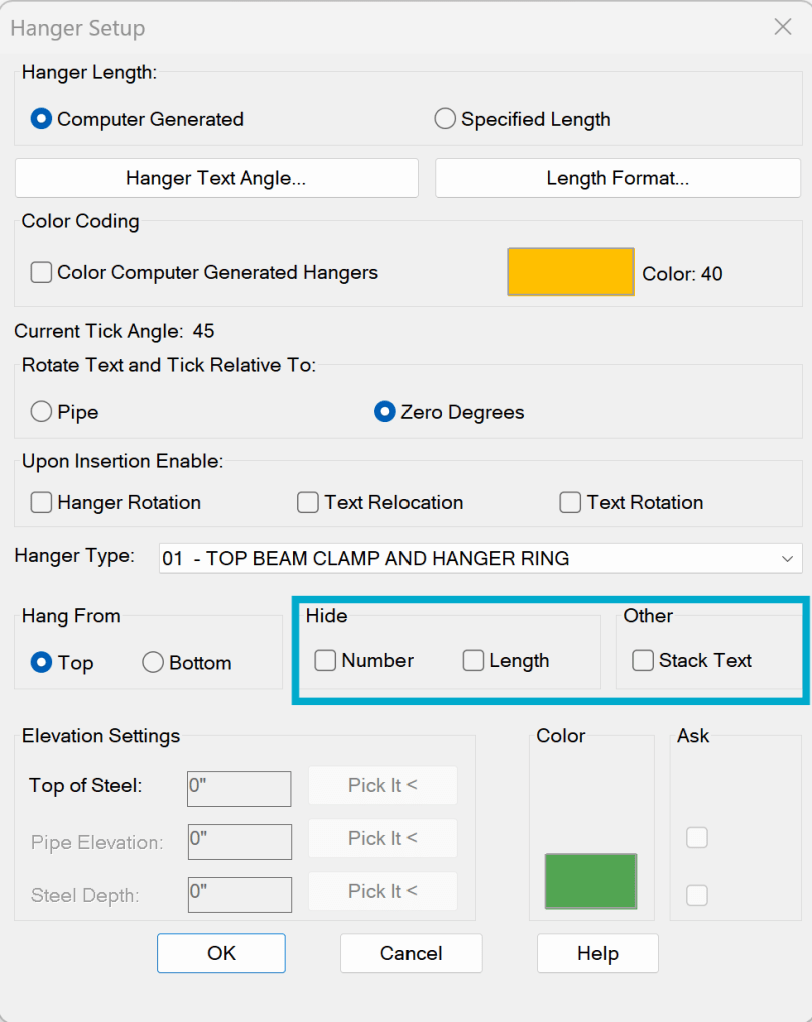
Note the three check boxes circled.
The first two let you hide the following:
Hanger Number (#3, i.e.)
Hanger Length (1-0), i.e.)
Both Hanger Number and Length (showing just the tick mark)
The third check box lets you show the info, but reduce the footprint of the text by stacking it
Some pictures of what these look like:
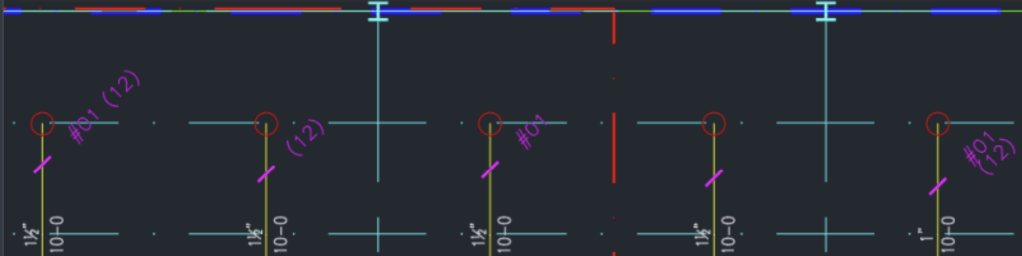
From left to right:
Nothing Hidden
Number Hidden
Length Hidden
Number and Length Hidden
Nothing Hidden, but with Stack Text checked
One or more of these should take care of the problem
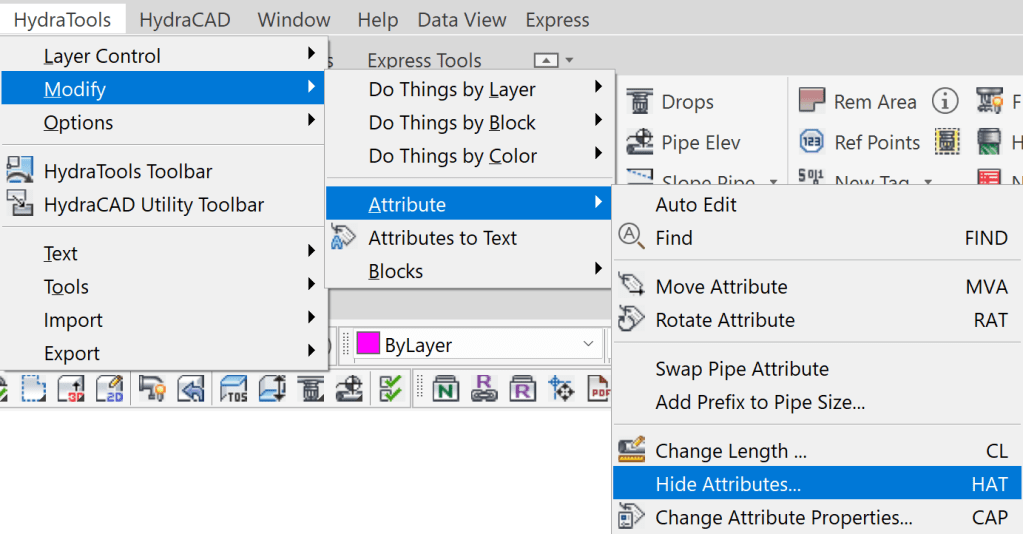
Note: If you change your mind about the display of these attributes, you can always change it later by using the Hide Attribute (HAT) command found in the HydraTools menu. This command can also be used to Unhide the Attributes:


Leave a Reply