The H-Factor

Reducing Entropy

Recent Posts

Unblocking a Group of Files

After downloading a file, it is often Blocked. You must right-click on it, pick Properties and then check the Unblock item: But doing a dozen or more files gets old, real fast. I just learned a way to Unblock a batch of files at once. It involves using PowerShell, a Microsoft tool that is a…

Adding Hanger Types to HydraLIST

If you want to use a new type of hanger, or are a fab shop that gets a job from a contractor that uses a hanger type that you do not have, it is easy to add that new hanger type to your own machine. A hanger is an assembly, and an assembly is just…

Welcome

Recently our previous blog service (Typepad) ended their business – so, we have a new home. It will take a bit to get images back and displaying properly, but we are working on it! Final pageview count of original Typepad blog: 387,232

October 2016
M T W T F S S
 12
3456789
10111213141516
17181920212223
24252627282930
31  

If you have a drawing with paragraphs of text all written in individual lines, you may find it troublesome to change the fonts, size of text, add formatting, or, heavens forbid, adjust the room the paragraph takes up. These individual lines are composed of old-school text tools like Dynamic Text (DTEXT), or regular text (TEXT).

Multiline text (MTEXT) is far superior in all ways. You can create several paragraphs of text as a single multiline text (mtext) object. With the built-in editor, you can format the text appearance, columns, and boundaries. But, what if you don’t feel like retyping existing TEXT into MTEXT?

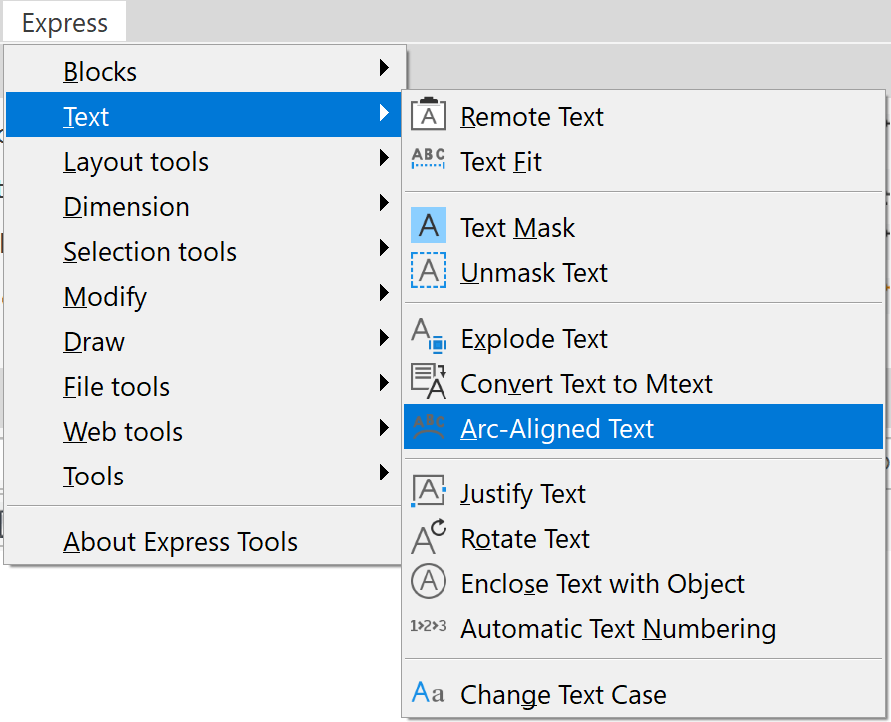
Express Tools to the rescue. Pick Express Tools, then pick Text. You will find the Convert Text to Mtext command there. Just select the text to convert, and it is converted!
Posted in

Leave a Reply