

Many larger sprinkler companies and fabricators modify their HydraLIST data – part numbers, prices, assemblies, pipe types, etc. It can get really tiresome to copy the HydraLIST data files to each users’ machine whenever data is changed. Enter the Master Data Location. To set this location to a common folder is really simple. Here are the steps:
1. Copy the contents of the master computers \HES\Hydlist\Ver50\Data\Setup folder to a common location, such as a network drive. Copy all the files the first time. After future updates, the master only need copy files whose dates are newer than the common folder file dates.
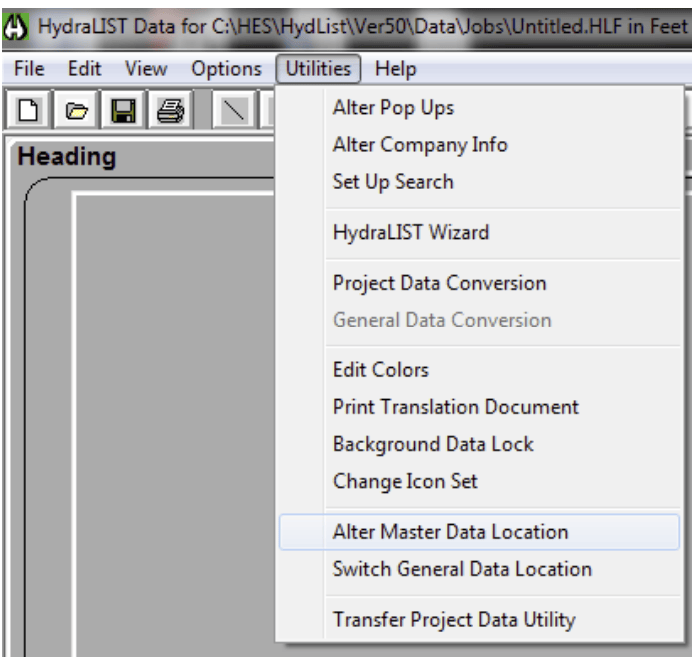
2. In HydraLIST, pick the Utilities pull down menu, then pick Alter Master Data Location (below)
3. This will bring up a folder selection tool. Pick the common folder you created.
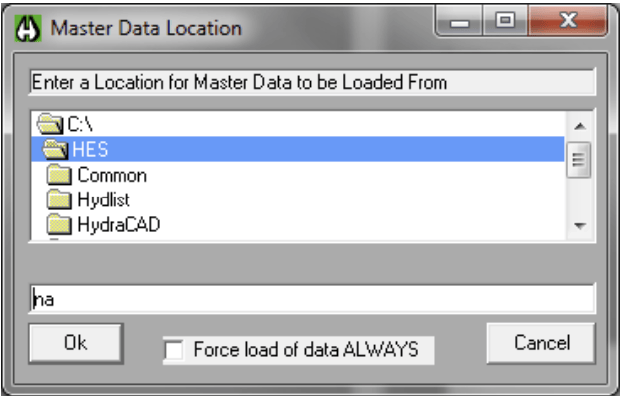
When a remote HydraLIST client opens the program, it will check the specified path above to see if any of the remote files are newer. If they are, they will be automatically copied to the client workstation. Check the box for Force Load of Data Always if you want the system to overwrite the files regardless of the date.


Leave a comment