

This idea is from long time customer and frequent good advice giver, Larry Howell at L & K Fire Protection in Marion, Illinois
“I wanted to share windows file explorer libraries with the blog users, as I just discovered their usefulness. When choosing a place to save calculations and stock listing files, the default does not work for us, finding the right directory on the server takes several clicks and looking. When choosing where to save the file, favorites do not appear but libraries do appear in the save options, if current job files are added to the libraries you can be only a couple clicks away. This would save more time with the more calculations and listings you have. This also saves us from moving files from our local “hes” folder to the proper directory for the project on the file server.”
Using graphics to illustrate Larry’s suggestion, here is how to do this:
Say that you, like Larry, want to write your listing (or calc) jobs to a location other than our default location. This is typically done by picking the Browse button and steering to the desired location:
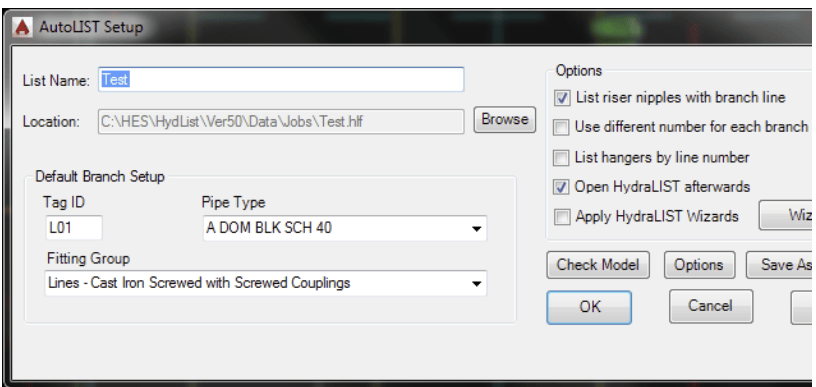
But… this can get tedious and tiring, especially if the location is buried deep in a path structure on a different drive.
So,
1. Find the folder to be your Listing files location
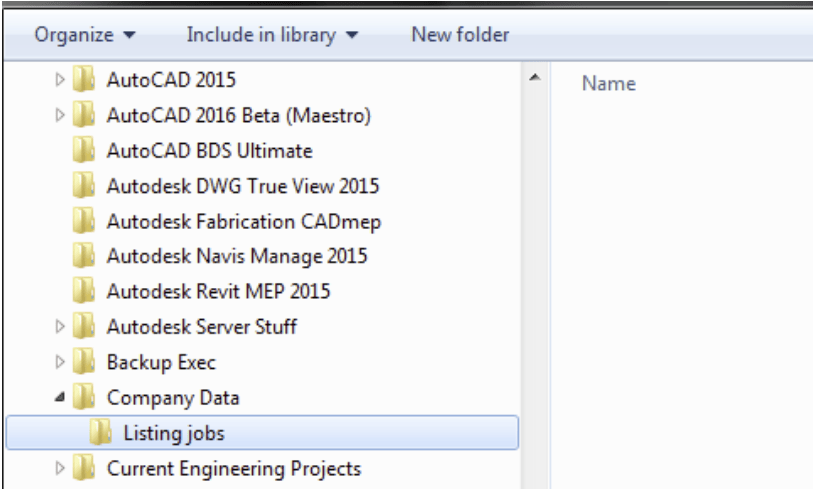
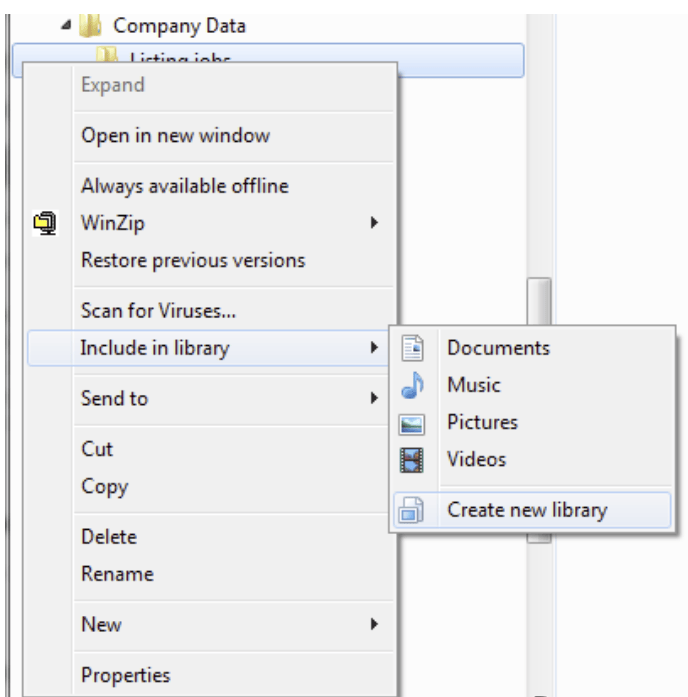
2. Right-click on it, pick Include in library, then pick Create new library
This will create a new Library with the same name as the folder you clicked on
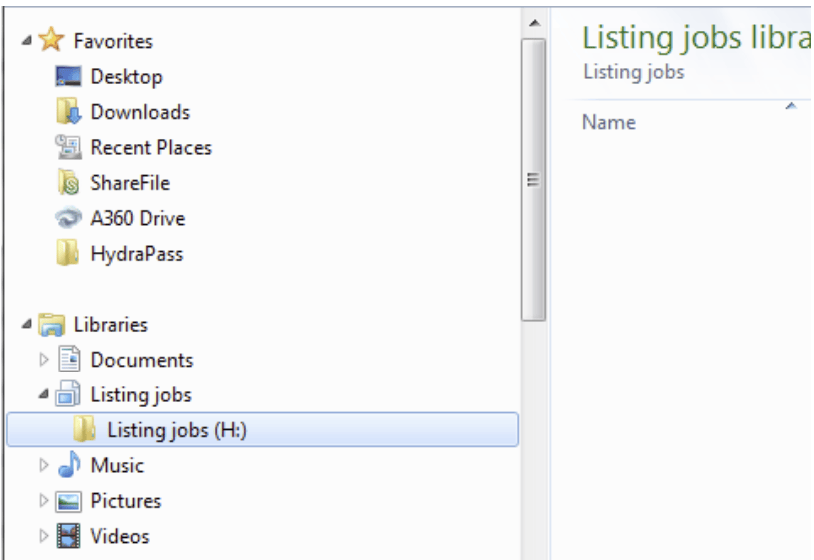
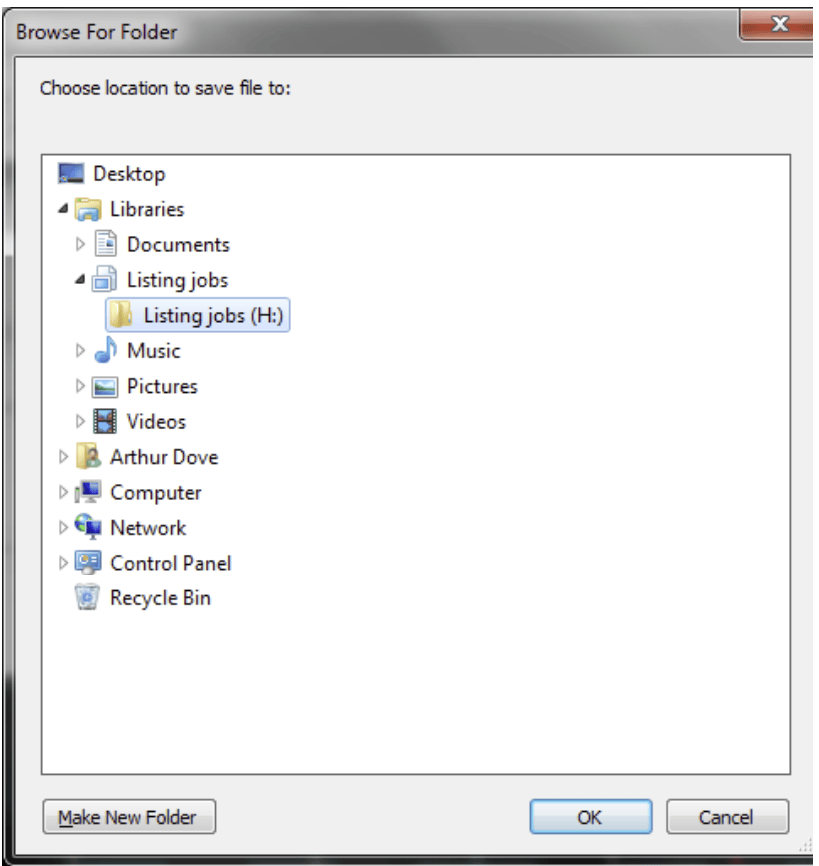
3. Now when you pick Browse in the Start AutoList (or Start AutoCalc) command, the folder you created is very easy to locate and select. The HydraLIST job will be created in that folder!


Leave a Reply