

From a longtime customer:
Q: What do you think about having the option to do arms as an option for pretty pipes, example why; I have an existing system and the lines and mains are existing and the arms are new so I want the pretty pipes of the existing to be blue dashed and the arms to be red solid?
A: We will indeed consider a separate item for Pretty Pipes, but there are two options right now:
1. Pretty Pipes already produces polylines that exactly match the linetype of the piping drawn! So, you can use the Existing Line and Existing Main command to draw the mains and lines using the HIDDEN linetype. These will then be Pretty Piped using the same (HIDDEN) linetype when that command is run.
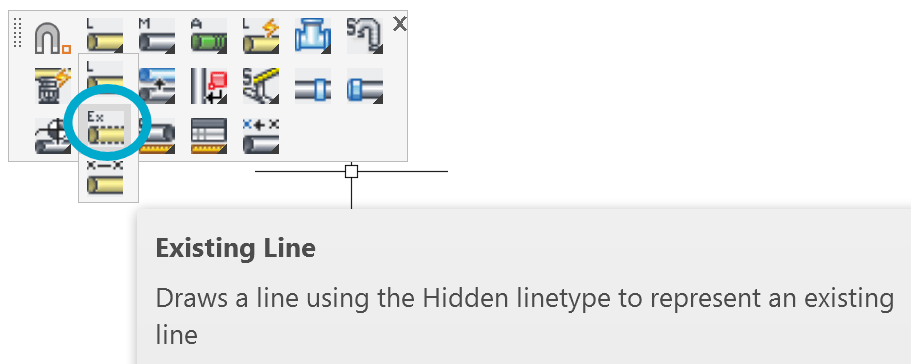
Note: be sure to select the regular Line or Main command when done drawing existing piping, in order to reset the linetype to ByLayer (CONTINUOUS). Conversely, you could simply change the linetype using the AutoCAD option for that command:

-OR-
2. HydraCAD has long had a command called Change item Colors. It is found right after Pretty Pipes on the Cleanup toolbar. What does it do? It lets you assign colors to different parts of your drawing. It is run after you run Pretty Pipes, hence it’s location on that toolbar.
You can assign three additional colors to Pretty Pipes such as Existing Pipe, Demo Pipe and New Pipe. You can also assign different linetypes to these parts of the drawing as well. The colors and linetypes can be applied to the areas you select or to just one pipe if you want. Sprinkler heads and other objects will change color as well.


Leave a Reply