The H-Factor

Reducing Entropy

Recent Posts

Welcome

Recently our previous blog service (Typepad) ended their business – so, we have a new home. It will take a bit to get images back and displaying properly, but we are working on it! Final pageview count of original Typepad blog: 387,232

Using a Non-Standard Pipe Type in HydraCALC

A customer called today asking how to enter a 1″ black plastic underground pipe for the calc. This particular situation sounded unique enough that I did not tell him to add that pipe type to our database, as I would have if he expected to see this pipe type used repeatedly. I told him to…

Using the Hydratec Software Download Area

Hydratec uses ShareFile to distribute our software installs and updates. New customers, or those without access, must request access to be able to get at these downloads. Access is only available to customers with a Hydratec subscription or those on an update plan. You can access the download area and request access by picking the…

May 2020
M T W T F S S
 123
45678910
11121314151617
18192021222324
25262728293031

Say you have a background drawing that has sprinkler heads already laid out, but they aren’t HydraCAD sprinkler heads. What to do?

Zeroth – Do what you should always do with a background drawing. That is, start a New drawing using one of the HydraCAD templates, and then insert your drawing into it, exploded.

First – you can stop laughing, because some of these backgrounds have a good quality sprinkler layout, unlike years past.

Second – it helps to know if the sprinkler heads are blocks or circles. Or something else.

If ‘something else’, then their isn’t much we can help with other than telling you to latch onto an Osnap that is useful with the existing heads and use the Insert Multiple Sprinklers command to copy a new head to that osnap on all the existing heads, one by one.

But, if it they are blocks or circles, then we can help.

Step 1: Define the new heads you will need using the usual method – Select Sprinkler

Step 2: Insert one of each new head type to a place on the drawing that will be easy to locate when the time comes.

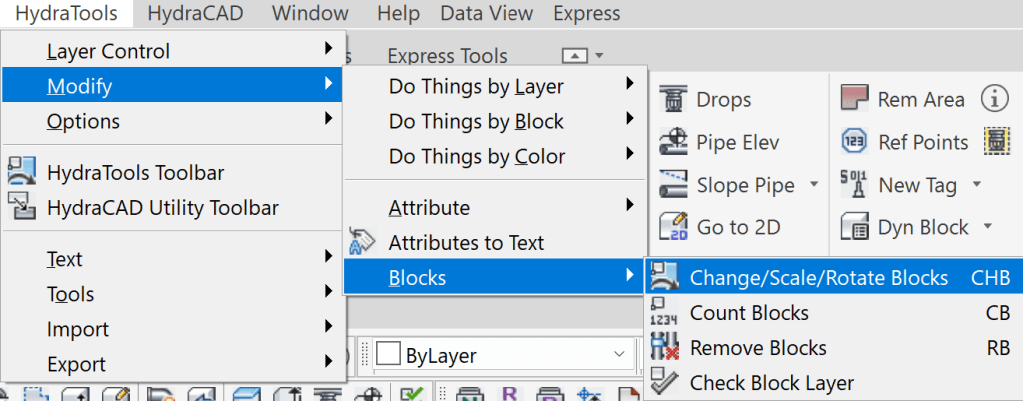
Step 3: Use the Change Block command! It is found in HydraTools->Modify->Blocks->Change Blocks (or type CHB

When that comes up,take a look at the dialog box. You can change blocks or circles using this tool:
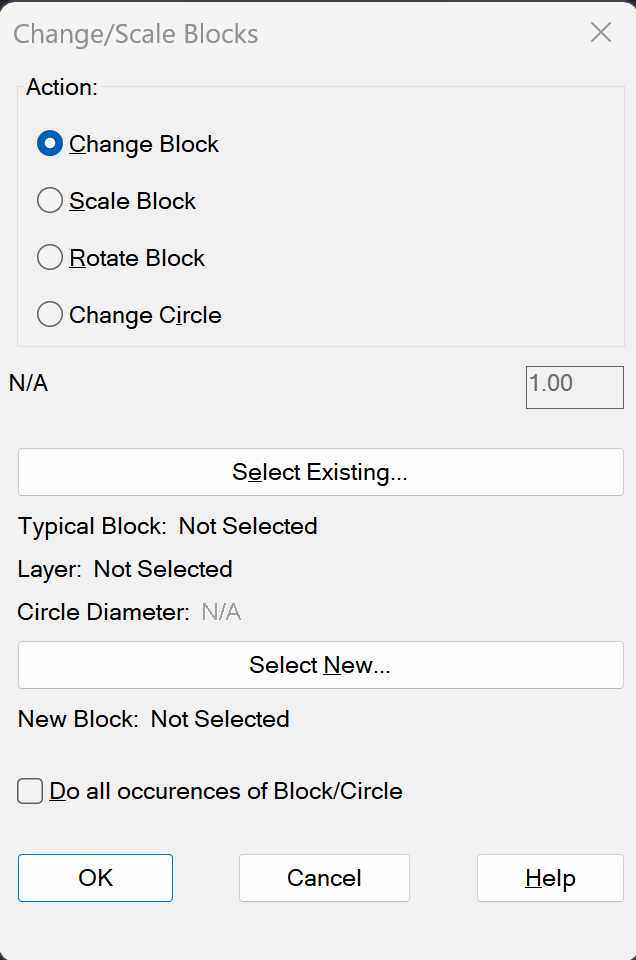
 For Blocks

Pick Select Existing and pick one of the existing heads. Then, pick Select New and grab one of the ew heads you inserted.

If you check Do All occurrences…, then all the existing heads of the same selected existing type will get converted. Do this once for each kind of head.

For Circles

Pick Change Circle. Pick Select Existing and pick one of the existing heads. Then, pick Select New and grab one of the new heads you inserted.

All circles matching the diameter and layer of the circle you selected will get converted. Do this once for each kind of head.
 
 
Step 5: Sometimes original blocks are not inserted with a ‘normal’ scale factor. This is pretty easy to notice. If, after you convert your heads, some or all of them need to be re-scaled, start this command again and select Scale Block. Pick Select Existing, like before. Then choose Do all occurrences… You will be prompted for a new scale factor. Enter this.
 
That’s it!
 
 
Posted in

Leave a comment