

Many of us use Copy and Paste in AutoCAD. Often when using Paste, we try to eyeball and line up the block we are pasting, or use OSNAPS.
But there are better ways!
The Edit drop down menu in AutoCAD has more than one command to copy and paste:
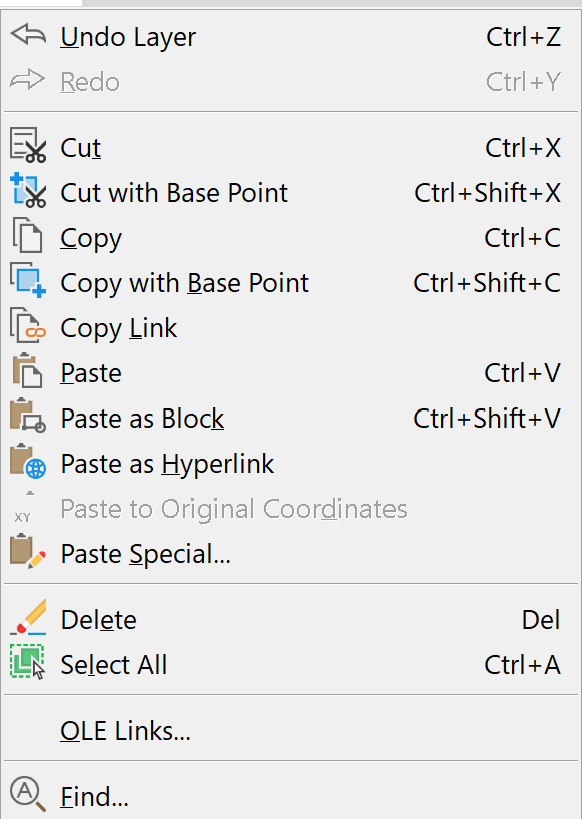
Cut is cut
-but-
Copy is copy without a specific base point. This makes it hard to align and place properly
Copy with Base Point allows you to select a base point, making it easy to line up the block between sheets or other objects
Paste asks for a placement point, you have to eyeball it or make sure you used Copy with Base Point so you can line up properly
Paste as Block brings in all that was Cut or Copied as a single entity
Paste to Original Coordinates is handy, as it does not require that you specify a base point. Say you need to copy the plan view of a stairway detail from one drawing to another, and naturally, you want to keep the valve and piping arrangement in the same relative position on each drawing. This is where Paste to Original Coordinates comes in handy
Note: You can also use the Copy with Base Point command from the same drop down. Select a common reference point, like the corner of the stairway. Then use the Paste command and you will see that your cross-hairs reflect that point.


Leave a Reply