The H-Factor

Reducing Entropy

Recent Posts

Welcome

Recently our previous blog service (Typepad) ended their business – so, we have a new home. It will take a bit to get images back and displaying properly, but we are working on it! Final pageview count of original Typepad blog: 387,232

Using a Non-Standard Pipe Type in HydraCALC

A customer called today asking how to enter a 1″ black plastic underground pipe for the calc. This particular situation sounded unique enough that I did not tell him to add that pipe type to our database, as I would have if he expected to see this pipe type used repeatedly. I told him to…

Using the Hydratec Software Download Area

Hydratec uses ShareFile to distribute our software installs and updates. New customers, or those without access, must request access to be able to get at these downloads. Access is only available to customers with a Hydratec subscription or those on an update plan. You can access the download area and request access by picking the…

February 2016
M T W T F S S
1234567
891011121314
15161718192021
22232425262728
29  

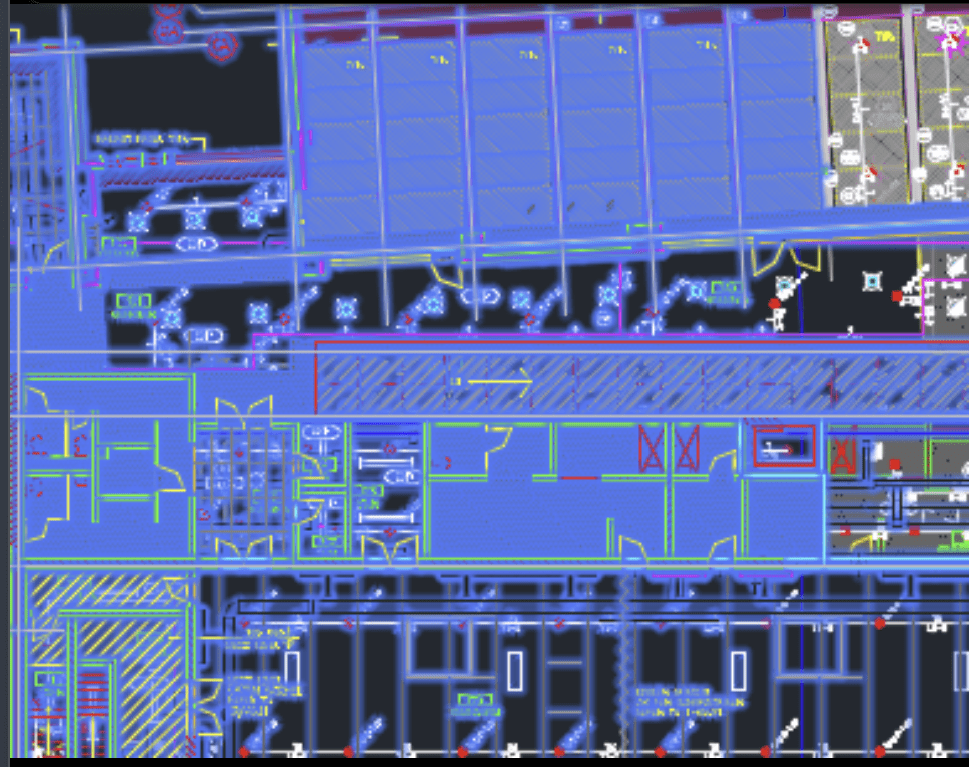
Say you need to select all 1″ riser nipples but don’t want to go through a large drawing looking for and selecting them individually. How to do that? This way:

1. Select all items in the drawing. Alternatively, you could just isolate the riser nipple layer and select those
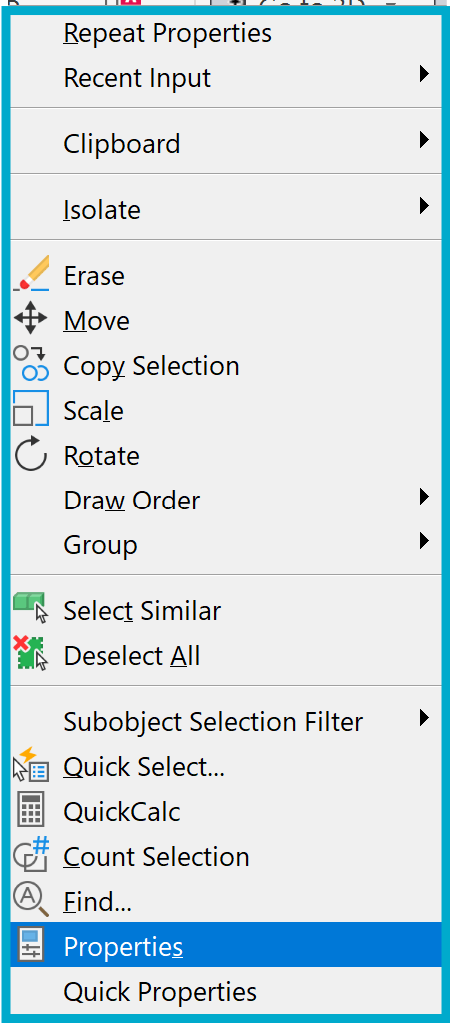
2. Open the Properties palette by Right-Clicking and picking Properties or hit CTRL+1
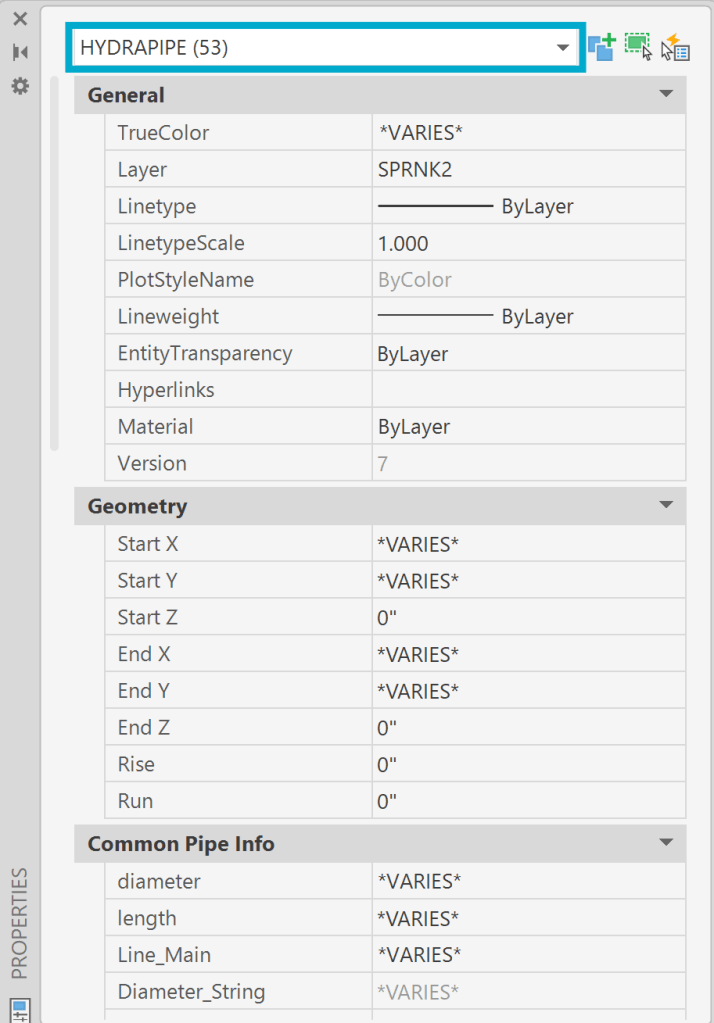
3. Pick the drop down list and pick HYDRAPIPE. This is the internal name of our riser nipples. All other items are now ignored
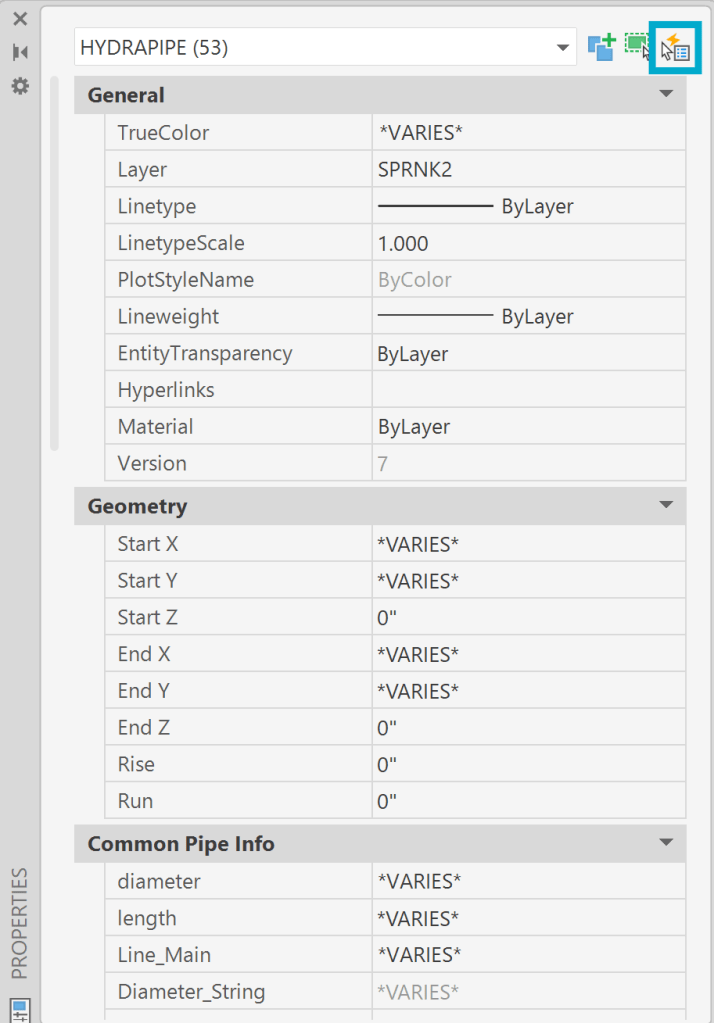
4. Pick the Quick Select button
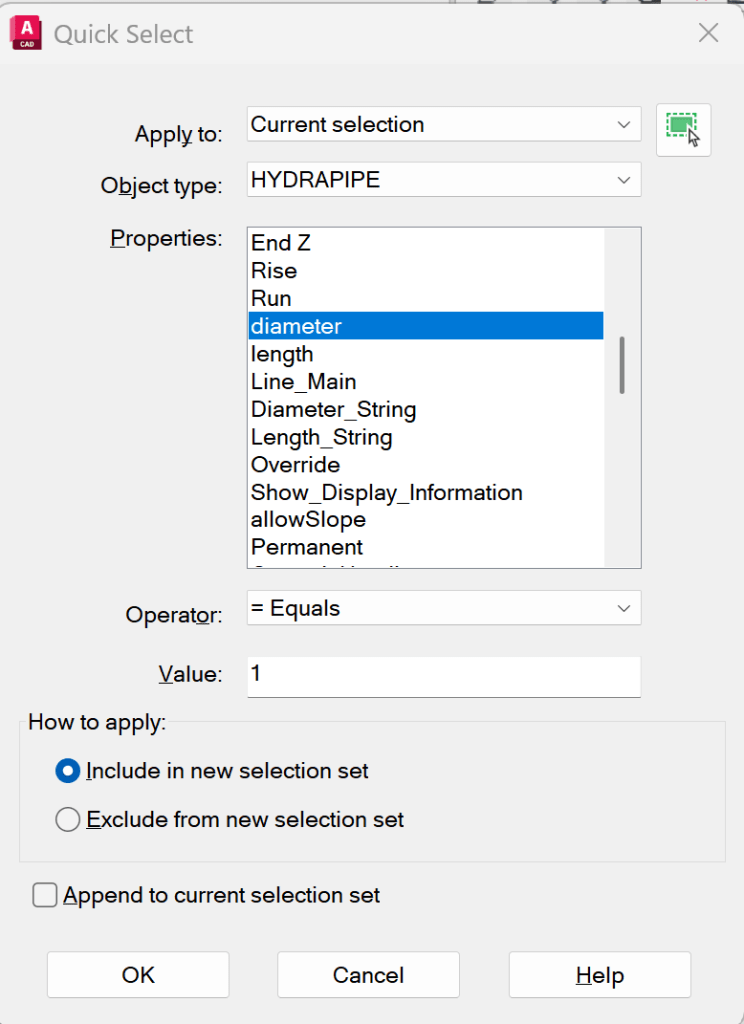
5. Pick HYDRAPIPE under Object type then diameter under Properties, then type in 1 under Value. Make sure Include in new selection set is selected and pick OK
6. You now have a selection set of only 1 inch riser nipples. You can change the diameter, length or whatever at this point
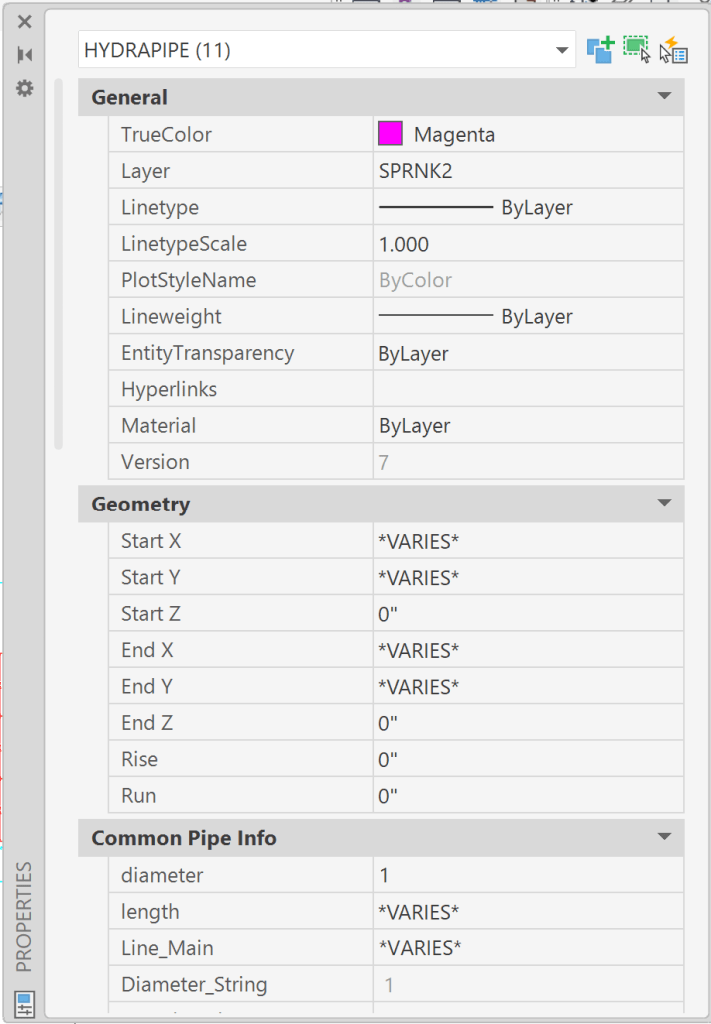
Note: if you use inch marks on your diameters, then you would need to type in 1″ as the Value in Step 5, above.

Posted in

Leave a comment