

From a customer today:
Where do you change the standard length for a piece of pipe so optimization will work for 20’-0” pieces. We are doing a stainless job.
Here is how…
Open HydraLIST and pick the General Data button, below:

Pick the Pipe Length Tables tab. On the left, you will notice 27 pipe types. ‘Default’ is the only one shipped with HydraLIST. It is preset for 21 foot lengths of pipe. The other 26 alphabetical choices are used to record specific lengths for a particular pipe type.
Pick the red Default button to fill out the tables with the current settings:
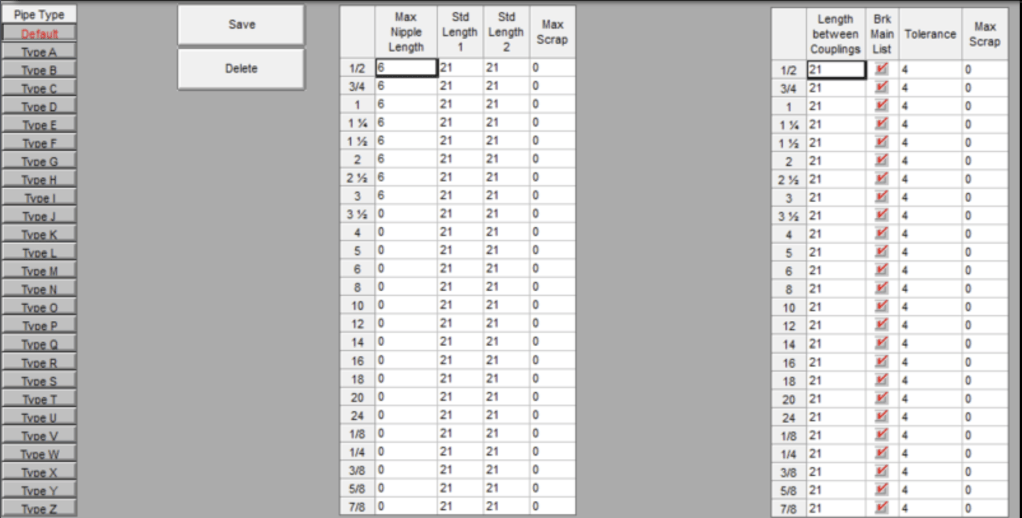
If you want to change the Default length to say, 25′, then enter 25 in all the fields that currently have 21. Pick Save to record those changes, then pick the Project Data button (same icon as the General Datas button) to go back to HydraLIST Input:
If, however, you want to create a set of pipe lengths for a particular pipe type (in this case, Type S for Stainless), then pick the letter of the Type you want to work on.
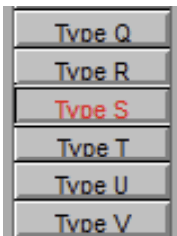
This will show an empty table if the type has not been previously filled out:
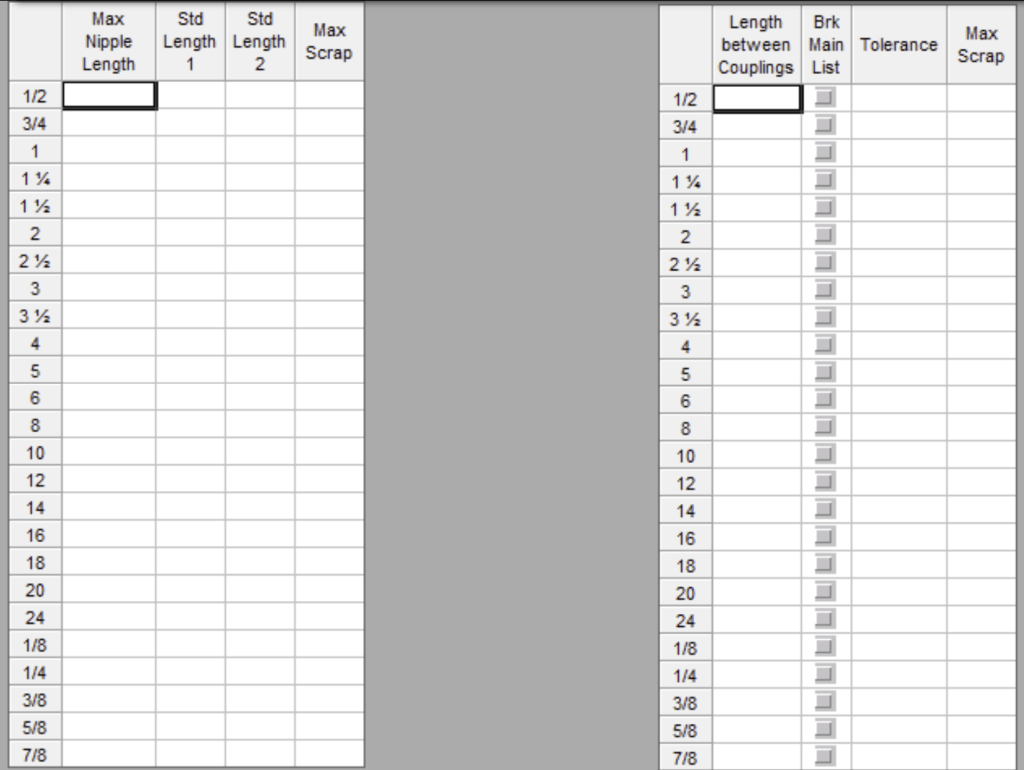
Enter the particulars for this pipe type. Stainless usually comes in lengths of 20′, so we would enter 20 in the Std Length 1, Std Length 2 and Length Between Couplings columns for all sizes.
Some other entries in these tables:
Max Nipple Length – the longest length that can be considered a nipple. A part number is required to be set up for all lengths up to this length
Max Scrap – the longest piece conidered to be scrap
Brk Main List – Check this box for each size to force a break in the pipe at the Length Between Couplings (LBC) distance. This is the usual condition for most users. Basically it means that if you enter a pipe longer than the LBC distance, it will be automatically broken in the stock list and a coupling added. If listing from the drawing, this never comes in to play unless to neglect to cut couplings in and/or cut them in at a length longer than the LBC.
Tolerance – The main will only be broken if the pipe length exceeds the LBC plus the tolerance
Again, pick the Save button and then the Project Data button when finished.


Leave a Reply