

From a customer (RM): I want a Sammy Screw hanger type (HydraCAD’s #02 and #02A) to show up in 3D when I use Create 3D Hangers. Instead, I get an error stating that it cannot find the 3D hanger information for that type:
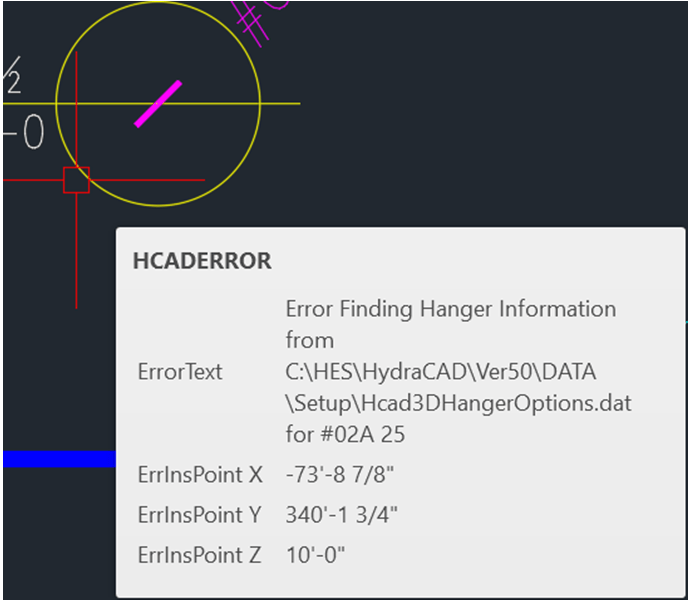
The data file for creating 3D hangers is located in the \HES\HydraCAD\Ver50\DATA\Setup folder. It is named Hcad3DHangerOptions.dat file.
1. Locate the file and open it by double-clicking on it. It should open in Notepad automatically. If not, pick Notepad from the list of options that appears.
2. Select the data from the file that is similar to hanger you are building and pick Copy
3. Go to the bottom of the file and paste that data, or paste it numerically in the sequence if you would rather do that
4. Modify the data to match what you are looking for
5. Save the file
Example
Notice that the second line of this file explains what each column, separated by a semi-colon, is used for

In this example, the customer created the data for both the #02 and #02A Sammy Screws by copying and existing hanger type and modifying that. This is recommended because the format and syntax of the entries are critical.
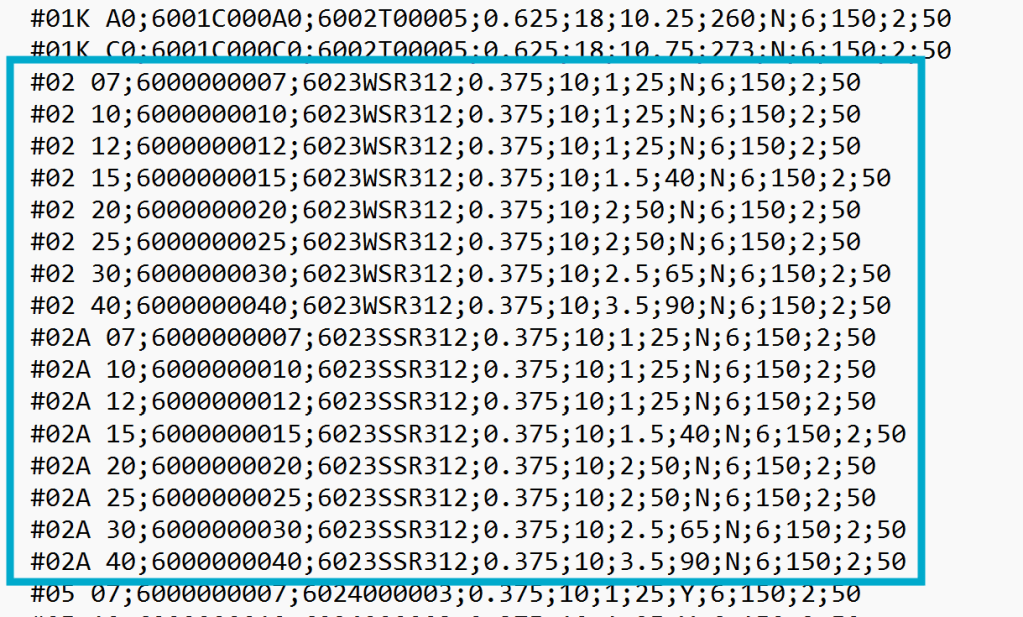
Save the file. Also, I suggest you make a backup of this file incase a future update replaces it.
Reference – The Hcad3dHangerOptions.dat fields and their use
Hanger num & size #02 07 (Hanger assembly number preceeded by # sign, space, diameter code)
Bottom connection PN 6000000007 (Part number for ring from the HydraLIST data entry)
Top connection PN 6023WSR312 (Part Number for Clamp from the HydraLIST data entry)
Rod dia. (inches) 0.375
Rod dia. (mm) 10
Bottom offset (inches) 1
Bottom offset (mm) 25
Show Connection Zone N (Connection Zone is BIM interference zone
Zone diameter (inches) 6
Zone diameter (mm) 150
Zone Depth (inches) 2
Zone Depth (mm) 50


Leave a comment