The H-Factor

Reducing Entropy

Recent Posts

Welcome

Recently our previous blog service (Typepad) ended their business – so, we have a new home. It will take a bit to get images back and displaying properly, but we are working on it! Final pageview count of original Typepad blog: 387,232

Using a Non-Standard Pipe Type in HydraCALC

A customer called today asking how to enter a 1″ black plastic underground pipe for the calc. This particular situation sounded unique enough that I did not tell him to add that pipe type to our database, as I would have if he expected to see this pipe type used repeatedly. I told him to…

Using the Hydratec Software Download Area

Hydratec uses ShareFile to distribute our software installs and updates. New customers, or those without access, must request access to be able to get at these downloads. Access is only available to customers with a Hydratec subscription or those on an update plan. You can access the download area and request access by picking the…

January 2019
M T W T F S S
 123456
78910111213
14151617181920
21222324252627
28293031  

A customer contacted me today about having trouble using our commands. The cause was that he was using a template that someone else in his company had made, and it wasn’t compatible with our program.

You can easily make your templates to work with our program. Here are the simple steps:

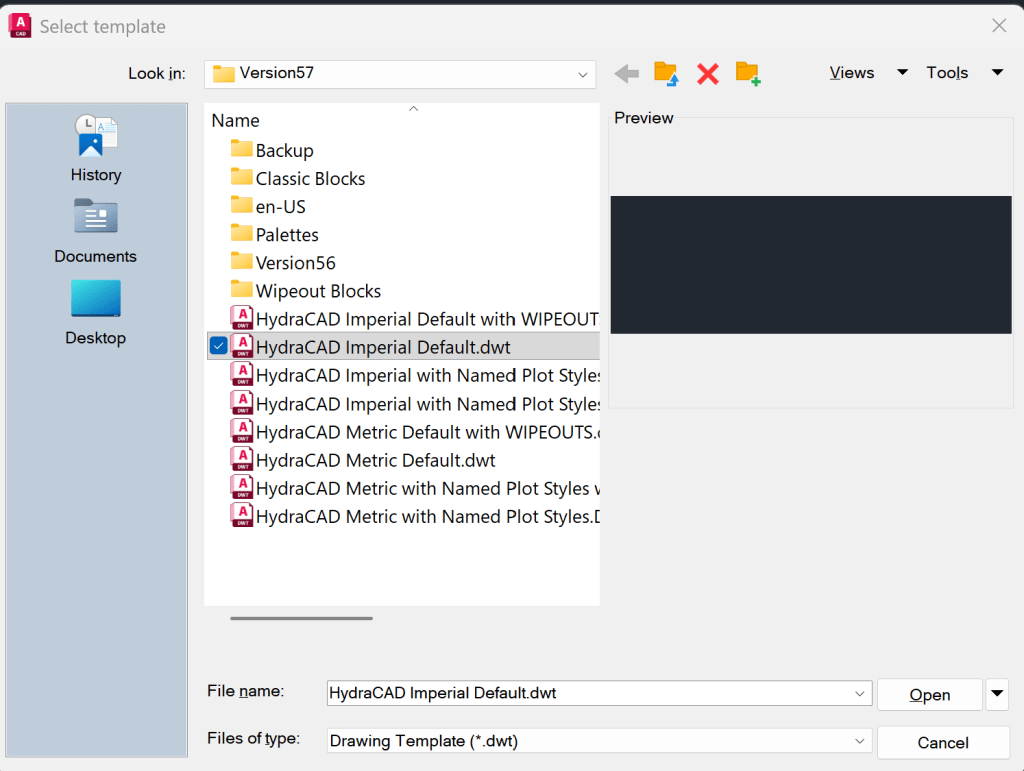
  1. Type in Open and Drawing Template (*.dwt) from Files of Type at the bottom of the window. Pick the template of ours that you want to use for a base (this is usually the HydraCAD Imperial Default)
2. When it opens you will be asked to pick a Drawing Scale. If you want to lock in a scale for your template, then pick it here. If you want to be asked every time you start a new drawing using this template, then pick Cancel
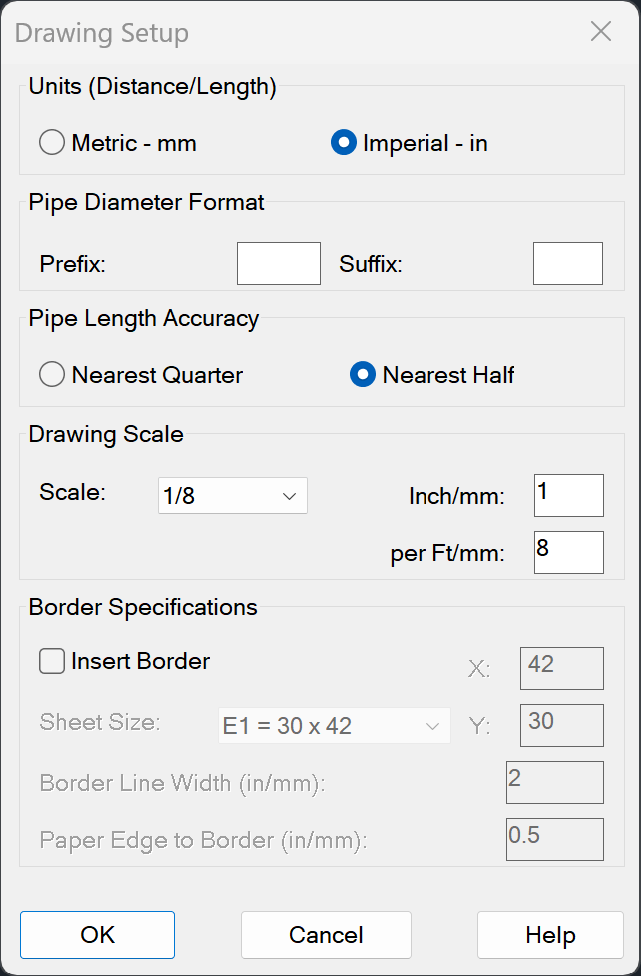
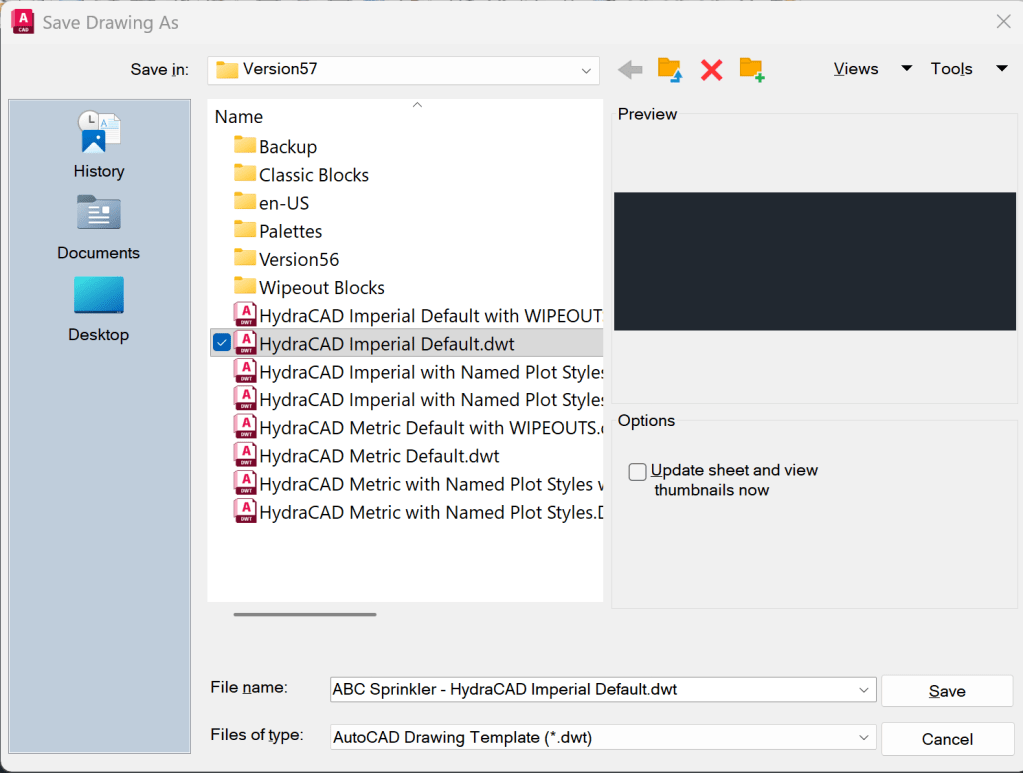
3a. After dealing with the above dialog box, immediately type in SaveAs. Type in the name you want to save the template as. We do this right away so you don’t accidentally overwrite ours
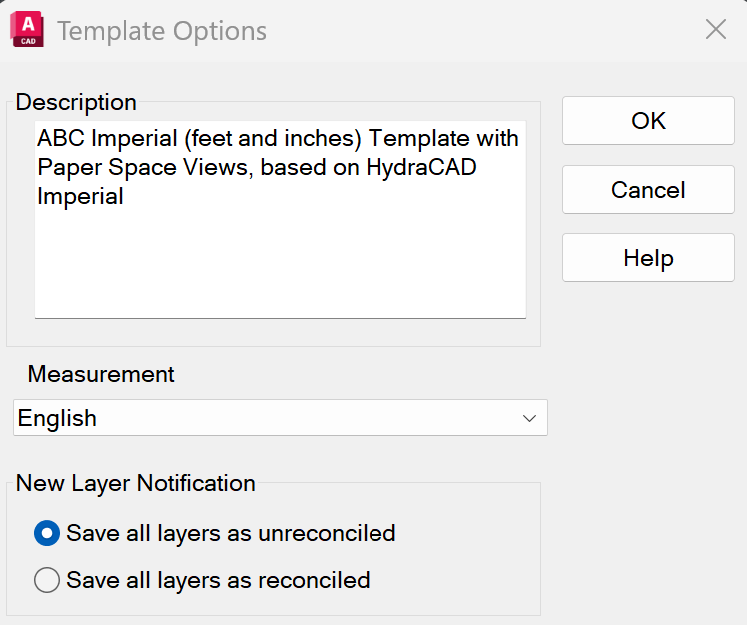
3b. Type in a new Description for your template. Note the suggested description, below
4. Open up your company template (.dwt) or drawing (.dwg) and select all the objects in it. Copy and paste these into the template you just made

5. Save your new template

 Note: This should be redone after every major release of HydraCAD (i.e. V57, V58, V59, etc)

Posted in

One response to “Creating Your Own Templates”

  1. George Ali Blackburn Avatar

    You can also use AutoCAD’s ‘Design Center’ tool to copy items (layers, blocks, layouts, etc) from your old template to the new one (you must have that drawing open).
    For example, to copy a layout over, while in the NEW template;
    1. Type ADCENTER at the command prompt,
    2. Click the ‘Open Drawings’ tab,
    3. Click on your old drawing from the list,
    4. Go to ‘Layouts’ then right-click the Layout you want to copy and select ‘Add Layout’

    Like

Leave a comment