The H-Factor

Reducing Entropy

Recent Posts

Welcome

Recently our previous blog service (Typepad) ended their business – so, we have a new home. It will take a bit to get images back and displaying properly, but we are working on it! Final pageview count of original Typepad blog: 387,232

Using a Non-Standard Pipe Type in HydraCALC

A customer called today asking how to enter a 1″ black plastic underground pipe for the calc. This particular situation sounded unique enough that I did not tell him to add that pipe type to our database, as I would have if he expected to see this pipe type used repeatedly. I told him to…

Using the Hydratec Software Download Area

Hydratec uses ShareFile to distribute our software installs and updates. New customers, or those without access, must request access to be able to get at these downloads. Access is only available to customers with a Hydratec subscription or those on an update plan. You can access the download area and request access by picking the…

April 2015
M T W T F S S
 12345
6789101112
13141516171819
20212223242526
27282930  

Last year we added a new feature to HydraCAD that allows users to add Fittings, Valves and Backflows to the drawing in order that they may be picked up in AutoCalc and brought over to HydraCALC. The command is Add Calculation Fittings from the Calculation toolbar:
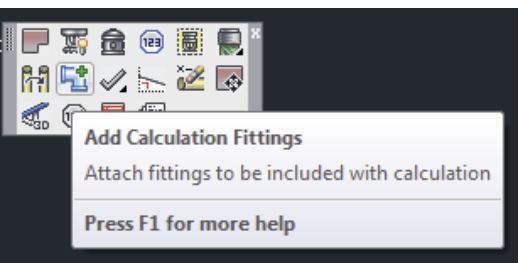
Pick this command. This will display a dialog box explaining the steps needed to add these fittings:
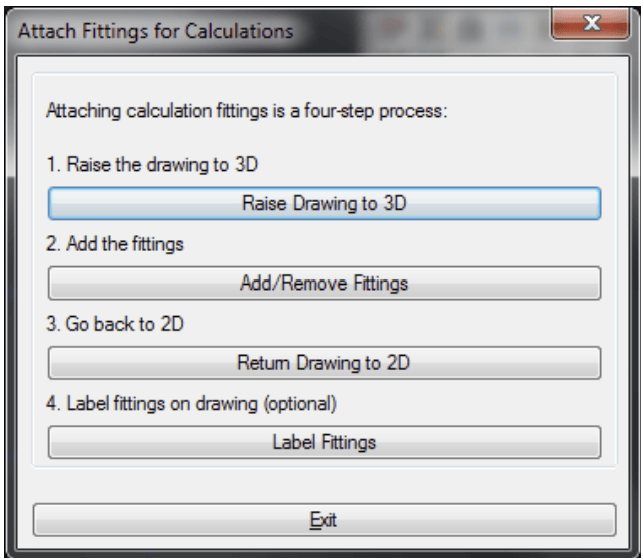
Step 1 is Raise the Drawing to 3D. Pick this button if your drawing is not already in the System Model mode. Then, pick the Add Calculation Fittings command again.

Step 2 will Add or Remove fittings to the pipe you want. Pick this button. You will be asked to select the pipe to add fittings to. In the example below, I am picking the riser pipe.
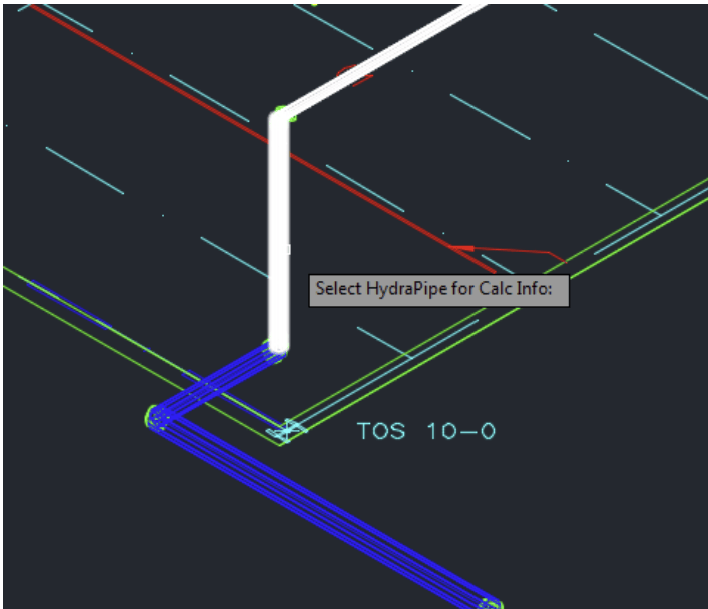
After selecting the pipe, you will be asked to select the fitting, etc, to add. Note that this is the same dialog box found in the HydraCALC standalone program:
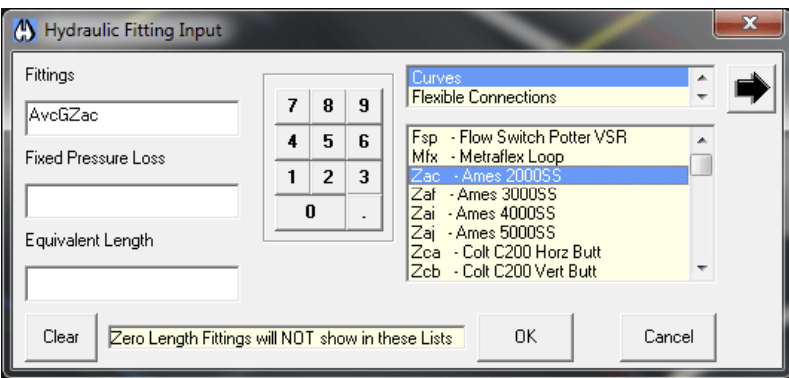
If you want to remove fittings, pick the Clear button and pick OK or select new fittings

Step 3 is used to return the drawing to 2D

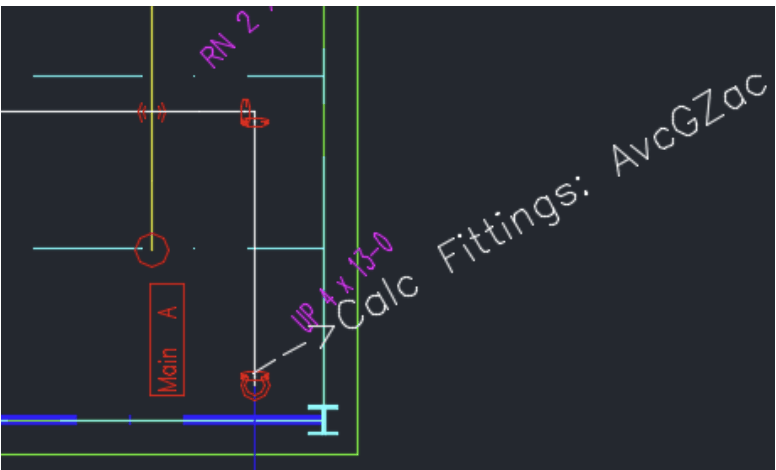
Step 4 is an optional step that will scan the drawing an add text alerting you to which fittings have been added, and where. This is not necessary for the proper operation of the program, but is simply there for your own information:
Posted in ,

2 responses to “Picking up Fittings, Valves and Backflows in AutoCalc”

  1. Iamjamieq Avatar

    I am returning to HydraCAD after using SprinkCAD for nearly 8 years, and pretty much forgot how to use the program. So I’m baffled that putting valves on the system requires four steps, including raising to 3D first. Why can’t I just put a valve block a pipe and have it be included in a calc and list? Why the whole long process? I mean, so much of HydraCAD just seems like ridiculously long processes to accomplish simple tasks.

    Like

  2. Art Avatar

    HydraCAD for AutoCAD needs to elevate the drawing for certain processes. To draw in 3D and stay in 3D the entire time, we recommend customers use our Hydratec for Revit products.

    Like

Leave a comment